Robot Vacuum Navigation Problems: Bumping Walls, Missing Rooms, LiDAR Issues
Why your robot vacuum bumps into furniture, misses rooms, and loses its map. Navigation types, common problems, and solutions. Repair in Riga — SATER.
Contents
Your robot vacuum was navigating flawlessly just last week — carefully skirting chair legs, methodically cleaning every room. Now it's crashing into furniture, forgetting entire zones, and drawing absurd routes on its map. Sound familiar? Navigation problems are one of the most common reasons people bring their robots to our service centre. In this guide, we'll explain how navigation works in modern robot vacuums, why it fails, and what you can do about it.
Three Navigation Types: How Your Robot "Sees" Your Home
Before hunting for the cause of the problem, it helps to understand which navigation type your robot uses. The type determines both the nature of faults and the ways to fix them.
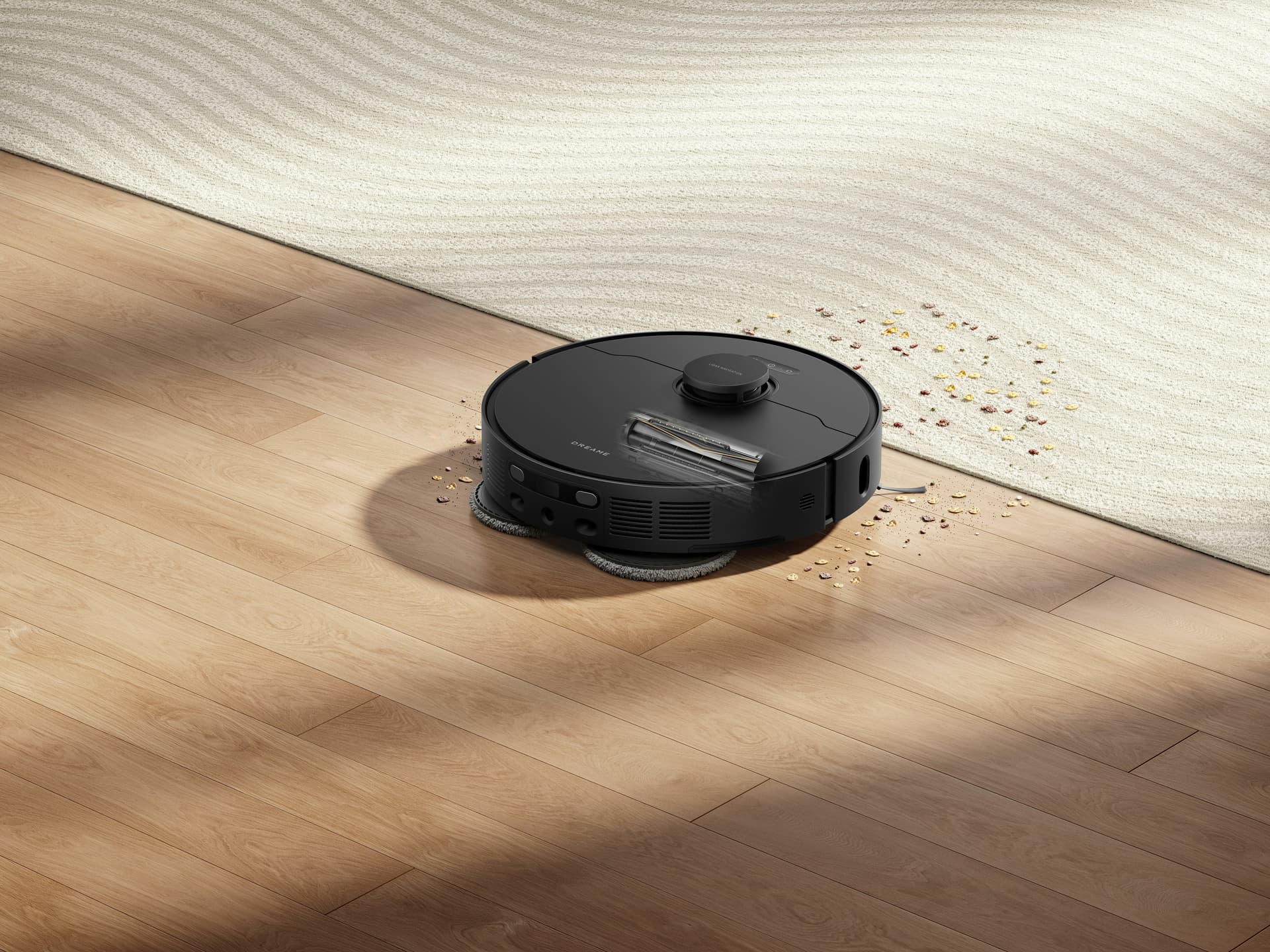
LiDAR (Laser Navigation)
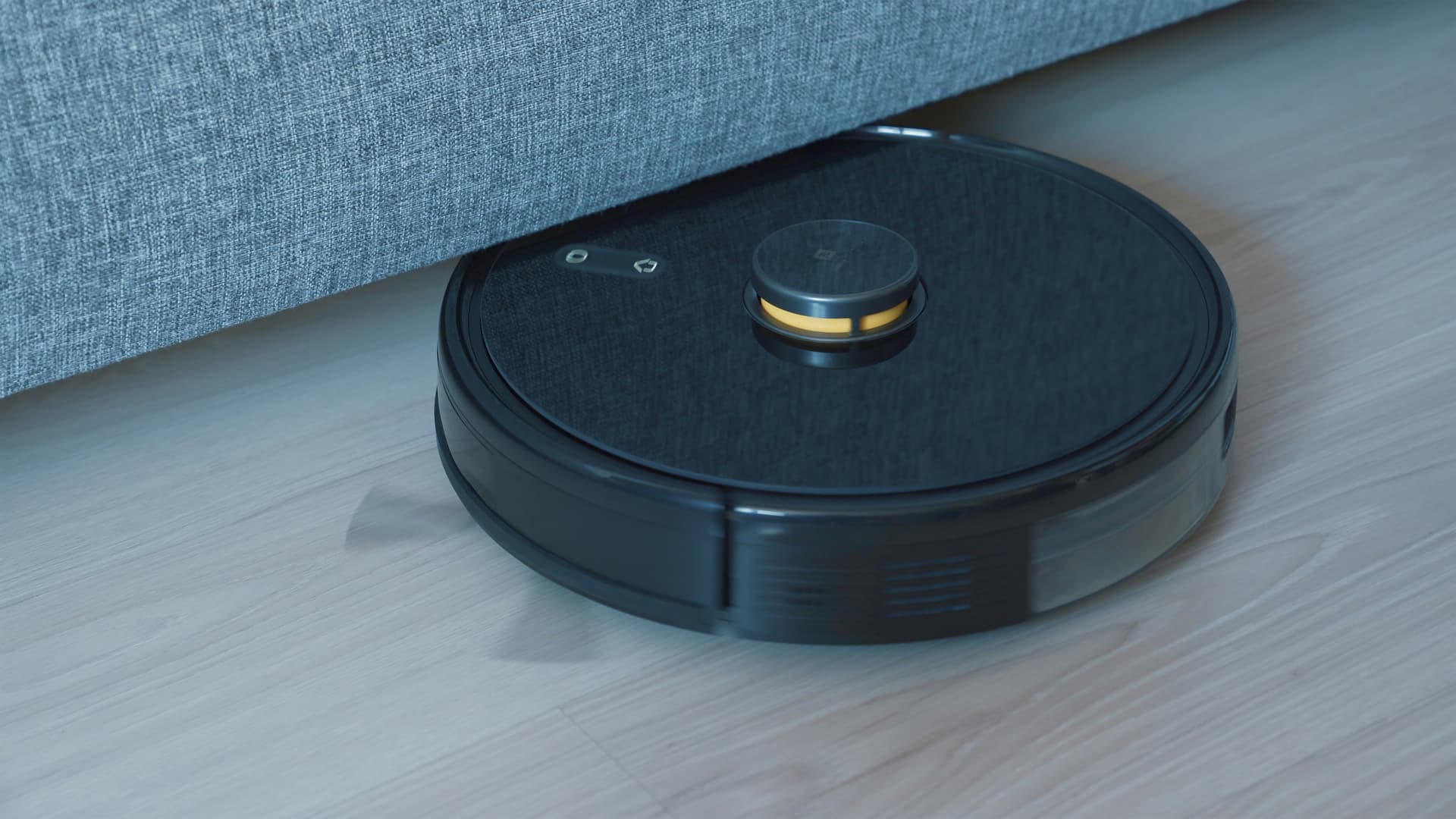
The turret on top of the robot houses a laser rangefinder. It spins at 5-10 revolutions per second, measuring the distance to walls and objects to build a precise 2D map of the room.
Used by: Roborock (all series), Xiaomi (Mi Robot Vacuum), Dreame (L10, L20, X series), Ecovacs (Deebot T series), most flagship models.
Pros: high accuracy, rapid map building, stable performance in complete darkness.
Common problems: mechanical damage to the LiDAR, dirty optics, seized turret motor, positioning errors after furniture rearrangement.
Camera (Visual Navigation, vSLAM)
A camera on the top or front of the robot captures images of the ceiling and surroundings. Computer vision algorithms then build a map from visual landmarks — light fittings, wall corners, ceiling patterns.
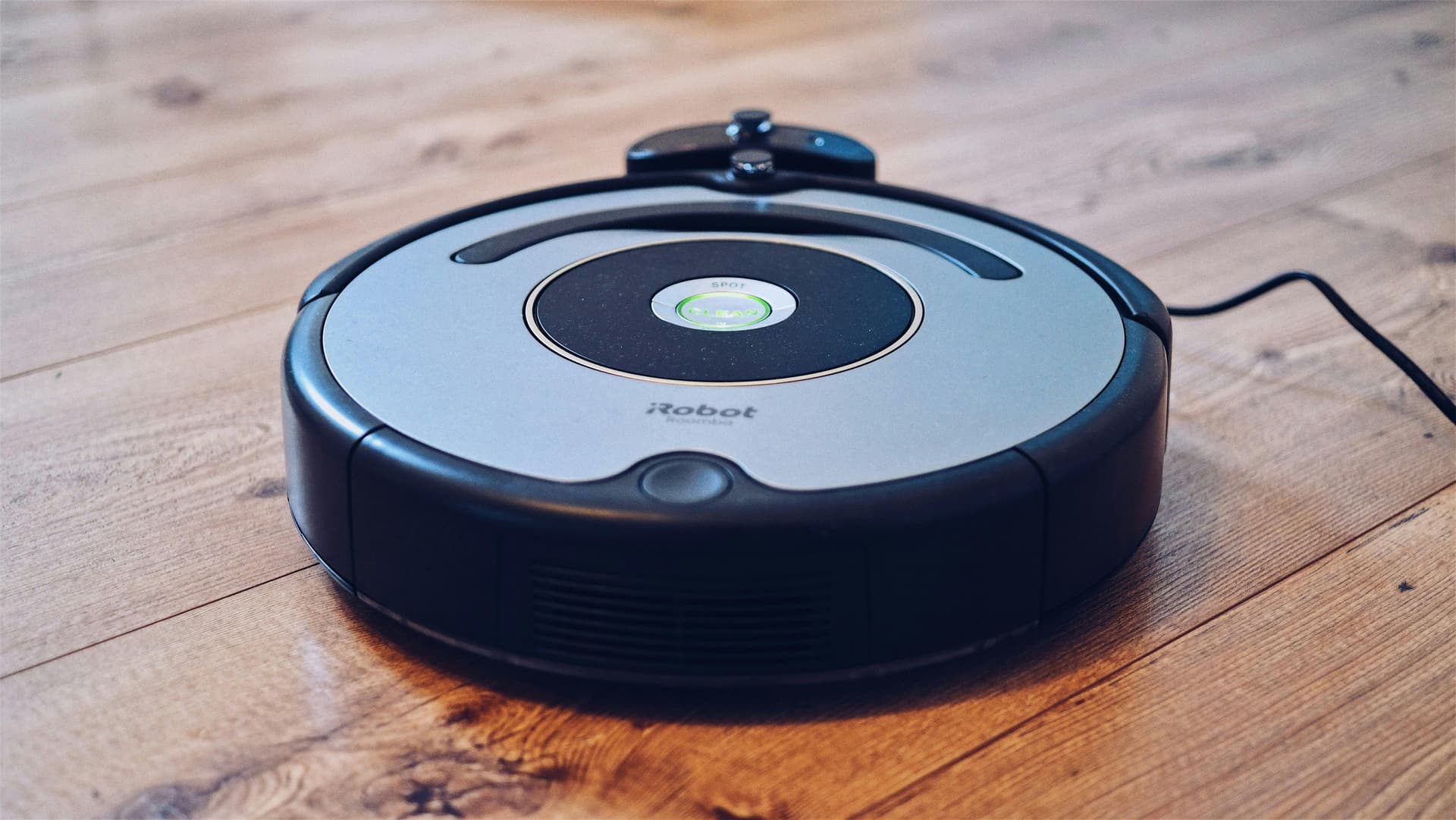
Used by: iRobot Roomba (j and i series), Ecovacs (Deebot N series with camera), Samsung Jet Bot, some Eufy models.
Pros: no protruding parts (can travel under low furniture), object recognition.
Common problems: heavy dependence on lighting, loss of orientation after furniture rearrangement, dirty camera lens, failures with plain ceilings or mirrors.
Gyroscope + Bumper Sensors (Inertial Navigation)
The simplest and cheapest type. The robot uses a gyroscope and accelerometer to track its own movement, and bumper sensors to detect obstacles upon collision.
Used by: budget Xiaomi models, Lefant, Cecotec Conga (entry-level series), Vileda, most robots under €200.
Pros: low price, minimal mechanical parts.
Common problems: chaotic cleaning path, missed zones, cumulative positioning errors, repeated passes over the same areas.
Map Corruption and Rebuilding
Why Maps "Break"
A saved room map is a data file that the robot cross-references with reality during every clean. Maps can become corrupted for several reasons:
- Firmware updates. Some updates reset saved maps. This happens particularly often with Roborock and Dreame robots when upgrading to a new firmware version.
- Memory module glitch. If a software error or power interruption occurs while the map is being saved, the map file can end up corrupted.
- Major furniture rearrangement. The robot can't reconcile the saved map with the changed space and begins making positioning errors.
- Moving the robot to a different property without deleting the old map.
How to Rebuild the Map Properly
- Delete the old map in the app (Mi Home, Roborock, Dreame Home, Ecovacs Home).
- Clear the floor of cables, small objects, and stray clothing — anything that could knock the robot off course.
- Open all doors that you normally leave open during cleaning.
- Start a full clean — not a zone clean, but the entire accessible area. The robot will build a new map in a single pass.
- Don't move the robot by hand during the first mapping clean. Picking it up and placing it elsewhere will break its coordinate lock.
- Make sure the dock is in its usual position. The robot builds its map relative to the charging station.
Multi-Floor Mapping
If you have multiple floors and one robot, modern models (Roborock S7 MaxV and later, Dreame L20 Ultra, Ecovacs X2) support saving multiple maps — typically 3-4 floors. The robot automatically determines which floor it's on based on the dock location and surrounding landmarks.
Common issue: the robot confuses floors if room layouts are similar. The solution is to ensure there are unique landmarks (furniture, walls) around the dock on each floor, and rebuild the maps one at a time.
Bumper Sensor Problems
The bumper sensor is a spring-loaded front panel that triggers when the robot physically collides with an obstacle. If the bumper sensor is faulty, the robot either fails to notice obstacles and rams into them at full speed, or conversely "sees" non-existent walls and gets stuck in open space.
Typical Bumper Faults
- Bumper is jammed. Trapped debris, hair, or a small object prevents the spring from returning the bumper to its neutral position. The robot "thinks" it's constantly pressing against something and refuses to move forward.
- Broken spring or travel limiter. The bumper wobbles or won't return. The robot doesn't register collisions and crashes into furniture at full speed.
- Damaged optical or magnetic sensor inside the bumper. Many robots detect bumper presses using IR sensors or Hall effect sensors. If these are dirty or failed, the bumper behaves erratically.
- Damaged ribbon cable. The cable between the bumper and main board can wear through from vibration.
What You Can Check Yourself
- Press the bumper by hand on both sides — it should depress easily and spring back.
- Check the gap around the entire bumper perimeter for trapped objects.
- In some robot apps (Roborock, Dreame), there's a sensor diagnostics section — check whether bumper presses register in real time.
Cliff Sensors: False Alarms
The underside of the robot has 3-6 infrared cliff sensors. They detect drops in height (stairs, ledges, steps) and stop the robot to prevent it from falling. But these sensors frequently produce false alarms.
Why Cliff Sensors Give False Readings
- Dark floors. Black, dark brown, or dark grey floors absorb IR radiation. The sensor doesn't receive a reflected signal and "decides" there's a drop ahead. The robot stops or turns around.
- Glossy and reflective surfaces. Lacquered parquet, polished porcelain tiles, black gloss tiles — the IR beam reflects at an unpredictable angle, and the sensor can't correctly gauge the distance.
- Rugs with dark patterns. The contrast between light and dark areas of the pattern is interpreted as a height difference.
- Dirty sensors. Dust and pet hair on the cliff sensor windows block the IR beam.
- Direct sunlight. Bright sunlight hitting the floor can "blind" the IR sensors — they can no longer distinguish their own reflected signal.
What You Can Do
- Wipe the sensors with a soft cloth or cotton bud. This is the first thing to try.
- Check the app settings. Some models (Roborock, Dreame) allow you to disable cliff sensors for specific zones — if you're certain there are no stairs there.
- Place white tape along the edge of a dark floor if the robot refuses to enter a particular area (a temporary fix).
- If false alarms persist after cleaning, the sensor is likely faulty and needs replacing.
Dark Floors and Reflective Surfaces
This is such a widespread complaint that it deserves its own section. Flats in Riga often have dark parquet, dark laminate, or dark ceramic tiles — and robot vacuums regularly struggle with them.
How Dark Floors Affect Navigation
- Cliff sensors: as described above — the robot treats dark flooring as a drop.
- Infrared obstacle sensors (ToF, structured light): some models use IR sensors not only on the underside but also at the front, for measuring distance to objects. Dark walls and furniture can also "absorb" the IR signal.
- Camera navigation (vSLAM): dark, uniform floors give the camera no visual reference points. The robot can't tell one area from another and becomes confused about its position.
Practical Solutions
- Current flagships (Roborock S8 Pro Ultra, Dreame X40 Ultra, Ecovacs X2 Omni) handle dark floors significantly better than earlier generations. If your 3-4-year-old robot constantly "fears" dark flooring, the issue may be an outdated algorithm rather than a hardware fault.
- Check whether a firmware update is available — manufacturers frequently improve cliff sensor processing in newer versions.
- If the problem is mechanical (sensor contamination or failure), bring the robot to a service centre.
Lighting Requirements for Camera Navigation
If your robot uses camera-based navigation (vSLAM), it literally "sees" with its eyes. And like any eyes, the camera needs light.
Minimum Requirements
- Most camera-based robots need at least 50-100 lux — roughly the level of dim evening lighting. Total darkness means the robot is lost.
- The iRobot Roomba j7/j9 has a built-in LED for recognising objects on the floor, but ceiling-based navigation still requires ambient light.
Typical Lighting Issues
- Cleaning at night with lights off. A camera-based robot in darkness reverts to random movement or refuses to start altogether.
- Direct sunlight from a window. Bright glare on the floor and sharp shadows confuse the recognition algorithms. The robot may "see" non-existent walls where there's a harsh light-shadow transition.
- Flickering lamps. Cheap LED bulbs with a flicker frequency below 100 Hz can create a stroboscopic effect for the camera, leading to incorrect map building.
- Plain white ceiling with no landmarks. Camera-based robots struggle to determine their position if the ceiling is a flat white surface with no light fittings, beams, vents, or other visual markers.
Recommendations
- Run your camera-based robot with the lights on.
- Close curtains or blinds if direct sunlight is streaming through the window.
- LiDAR robots are free from lighting issues — the laser rangefinder works in complete darkness.
Virtual Walls and No-Go Zones
Modern robots allow you to set virtual walls and no-go zones in the app — areas the robot should not enter. But problems crop up here too.
Common Glitches
- The robot ignores a virtual wall. If the map is corrupted or the robot has lost its position, it may not "see" software-defined boundaries. Solution: rebuild the map.
- No-go zones have shifted. After rearranging furniture or reconnecting the dock, no-go zones may "drift" relative to the actual layout. Delete the zones and set them up again.
- Magnetic strip isn't working. Some robots (iRobot, older Xiaomi models) use physical magnetic strips to restrict zones. If the strip has moved, curled, or lost its magnetism, the robot may drive straight over it.
- Map conflict. If multiple maps are saved in the app (multi-floor home) and the robot loads the wrong one, no-go zones won't match the real space.
Furniture Rearrangement: Why the Robot Gets Lost
A robot vacuum builds its map based on fixed objects — walls, large furniture, doorways. When you rearrange furniture, the robot faces a contradiction: the saved map says one thing, but the sensors report another.
How This Manifests
- The robot gets stuck in new "dead ends" that didn't exist before.
- "Ghost walls" appear on the app map — the robot avoids a spot where a wardrobe used to stand, even though it's been moved.
- The robot starts moving erratically, trying to "reorient" itself.
- With major changes, the robot may lose its position entirely and fail to return to the dock.
Recommendations
- Minor changes (moved a chair, removed a box) — the robot will adapt on its own within 1-2 cleans. The map updates automatically.
- Significant changes (moved the sofa, removed a wardrobe, relocated a table to another room) — it's best to delete the map and run a fresh mapping clean.
- Major rearrangement — delete all maps and build new ones.
- Don't move the charging dock without recreating the map — the robot will lose its reference point.
LiDAR Problems: What Breaks Most Often
LiDAR is a mechanical device with a rotating mirror or prism. It has its own vulnerabilities:
Turret Rotation Motor
The most common LiDAR failure. The motor that spins the laser module can:
- Seize up from dust or pet hair getting inside.
- Wear out over time — RPM drops, and the map is built inaccurately.
- Fail completely — the robot displays a LiDAR error and refuses to start cleaning.
Symptoms: a distinctive scraping or humming sound from the turret, a LiDAR error message in the app, the robot spinning on the spot or refusing to begin cleaning.
Dirty Optics
Dust on the laser or receiver lens distorts readings. The robot starts "seeing" walls where there are none, or fails to notice real obstacles.
What to do: gently wipe the LiDAR window with a soft cloth. Don't use alcohol or harsh cleaners — they can damage the lens coating.
Impact Damage
If the robot has fallen off a step or taken a knock to the turret, the LiDAR's internal optics may have shifted. Everything looks normal from the outside, but the map is built with errors.
LiDAR Repair
LiDAR repair involves motor replacement, cleaning or replacing the optical module, and calibration. This is a service-centre job — dismantling the LiDAR at home is not recommended. At the SATER service centre, we repair LiDAR units on Roborock, Xiaomi, Dreame, Ecovacs, and other models. LiDAR replacement is part of our wider robot vacuum repair in Riga service.
When You Can Fix It at Home — and When to Visit a Service Centre
You Can Fix These Yourself
- Cleaning cliff sensors and the LiDAR window of dust.
- Checking the bumper for trapped debris.
- Deleting an old map and building a new one.
- Updating firmware via the app.
- Reconfiguring virtual walls and no-go zones.
- Rebooting the robot (switch off, wait 10 seconds, switch on).
You Need a Service Centre
- A LiDAR error that persists after a reboot.
- Scraping, humming, or no turret rotation.
- A bumper that's physically damaged or won't return to its neutral position.
- The robot systematically fails to detect walls or furniture and crashes at full speed.
- Cliff sensors give false alarms even after cleaning — the IR emitter or receiver may have failed.
- The robot can't find its dock despite having a correct map — the issue may be the IR receiver that "sees" the dock.
- Any errors that don't resolve with a reboot and firmware update.
Repair path
Where to go next if this fault is repairable
Related SATER service, brand and fault pages help you understand the repair route and get the device into the right diagnostic flow.
Frequently Asked Questions
Need professional repair?
SATER service centre — Silmaču iela 6, Riga
SATER service — home electronics & appliance repair in Riga