TV Screen Problems: Lines, Dead Pixels, Dark Spots, Image Retention
Complete guide to TV screen defects — lines, dead pixels, dark spots, burn-in. What you can fix at home and when to seek professional repair.
Burak The Weekender / Pexels
Contents
The screen is the most vulnerable and most important part of any television. It's what you look at every day, and any defect immediately catches your eye. Vertical lines, dead pixels, dark patches, ghosting — all of these ruin your viewing experience and raise the question: can it be fixed, or is it time for a new TV?
In this guide, we'll cover all the major screen problems across brands — Samsung, LG, Sony, Philips, TCL, Hisense and others. We'll explain what causes each defect and tell you what you can try at home versus when professional diagnosis is needed.
Vertical and Horizontal Lines on the Screen
Lines on the screen are one of the most common complaints. They come in different forms, and each type points to a different cause.
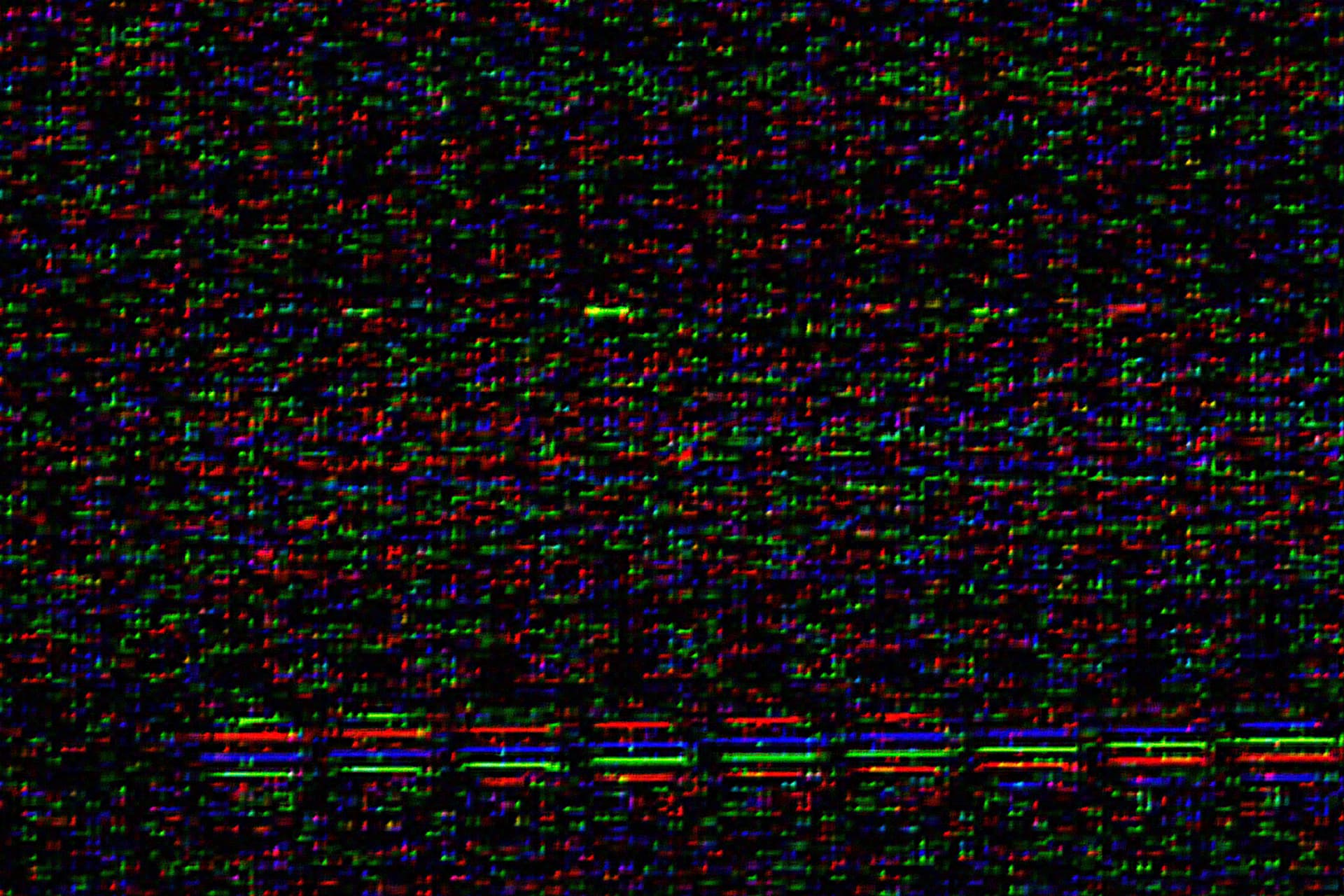
Thin Coloured Vertical Lines
One or several thin lines (red, green, or blue) running from top to bottom — this is a typical symptom of a matrix or ribbon cable issue. On Samsung, LG, and Sony LCD/LED sets, it usually means:
- Ribbon cable damage — the flex cables connecting the panel to the T-Con board loosen or oxidise over time
- LCD panel defect — failure of an entire pixel column
What to try at home: gently press along the bezel where the line starts. If the line disappears under pressure, it's a ribbon cable contact issue that can be repaired in a service centre.
Wide Horizontal Bands
Horizontal bands several centimetres wide, sometimes with colour distortion — this is typically a T-Con (Timing Controller) board problem. The T-Con board controls how the panel renders the image.
- On Samsung UE/QE series — the T-Con board sits at the top of the panel
- On LG OLED — the T-Con is integrated into the panel itself
- On Sony Bravia — a separate module, accessible for replacement
Good news: replacing the T-Con board is a relatively affordable repair that often resolves the banding issue completely.
Lines That Come and Go
If lines appear and disappear — especially as the TV warms up — it's almost certainly a contact problem. The ribbon cable loses its connection at certain temperatures. This type of defect will only get worse, so it's best not to delay a visit to the service centre.
Dead and Stuck Pixels
Pixels are the tiny dots that make up the image. A Full HD screen has over 2 million of them; a 4K screen has over 8 million. It's no surprise that individual pixels occasionally fail.
Dead Pixels
A dead pixel is a dot that always stays black, regardless of what's on screen. It doesn't light up at all. On a white or light background, this defect is particularly noticeable.
Causes:
- Manufacturing defect — the pixel's transistor was damaged during production
- Physical damage — an impact or pressure on the screen
- Natural wear — extremely rare, but can happen on older panels
Can it be fixed? Unfortunately, dead pixels on LCD panels are virtually impossible to restore. If the pixel has completely failed, no software method can revive it. The only option is panel replacement, which is usually not cost-effective.
Stuck Pixels
A stuck pixel is a dot that always glows a single colour: red, green, or blue. Unlike a dead pixel, it's still working — it's simply "stuck" in one state.
What to try:
- Software stimulation — play a video with rapidly changing colours at full screen for 30-60 minutes (search for "stuck pixel fix" on YouTube)
- Gentle pressure — turn off the TV, place a soft cloth over the problem area, and apply light circular pressure for a few seconds
- Power cycling — quickly turn the TV on and off 5-6 times with a few seconds between each cycle
These methods work in roughly 40-60% of stuck pixel cases. If none of them help, the defect has likely become permanent.
Dark Spots and Dim Areas
Dark spots on the screen are areas that appear noticeably darker than the surrounding image. They're especially visible on white or light backgrounds.
Backlight Bleeding
On LCD/LED televisions, the backlight sits behind the panel. If the LEDs are unevenly distributed or damaged, you'll see:
- Edge bleeding — bright patches along the screen border, especially noticeable when watching in a dark room
- Clouding — uneven light and dark areas across the entire screen surface
What you can do:
- Reduce backlight brightness (not to be confused with picture brightness) — most TVs ship at 80-100%, but a comfortable level is 40-60%
- Disable dynamic backlight (Local Dimming) — it can sometimes make unevenness more visible
- Check again after 2-3 weeks — on new TVs, bleeding sometimes diminishes after a "break-in" period
When it's normal and when it's not: slight edge bleeding is inherent to LED backlighting and can't be eliminated entirely. But if the spots are visible during normal content viewing (not only on a black screen in total darkness), that's a defect.
Dark Spots on OLED
On OLED televisions (LG, Sony, Samsung QD-OLED), dark spots may indicate:
- Panel non-uniformity — manufacturing tolerances; shows up on grey tones
- Early organic diode degradation — on older panels or with very heavy use
- Pixel damage — from physical impact
Run the built-in Pixel Refresher (LG) or Panel Refresh (Sony) function — it recalibrates the panel and can reduce the visibility of spots.
Burn-In and Image Retention
Image Retention (Temporary Ghosting)
Image retention is the "ghost" of a static image that lingers on screen after the picture changes. A channel logo, taskbar, or game HUD — any static element can temporarily "imprint" itself on the display.
On LCD/LED: very rare, usually fades on its own within minutes or after turning the TV off. Not a serious concern.
On OLED: more common, but typically temporary as well. What helps:
- Switch the TV to varied content for 30-60 minutes
- Enable the screensaver
- Run Pixel Refresher — a built-in utility on LG OLED models
Burn-In (Permanent)
Burn-in is irreversible damage where the "ghost" of an image remains on screen permanently. The organic LEDs in OLED panels degrade unevenly: areas that displayed bright static elements lose brightness faster than the rest.
Susceptible models:
- LG OLED (C series, G series, all WOLED models)
- Sony OLED (A series, using LG Display panels)
- Samsung QD-OLED (S series) — less susceptible thanks to Quantum Dot technology
How to prevent it:
- Don't leave a static image on screen for longer than 30 minutes
- Use the "Shift pixels" mode (automatic pixel shifting)
- Keep OLED brightness at 50-70%, not maximum
- Enable the screensaver during idle periods
Can burn-in be fixed? Partially — Pixel Refresher can reduce its visibility, but it cannot fully eliminate burn-in. In severe cases, the only solution is an OLED panel replacement.
Colour Artefacts and Banding
Colour Banding
Banding refers to visible steps between colour shades that should be smooth. Instead of a gradient, you see distinct "bands" of colour. It's especially noticeable in dark scenes and sky gradients.
Causes:
- 8-bit panel limitations (most budget LCD sets)
- Aggressive image processing by the TV
- Low-quality source content (compression)
What to try:
- Disable image processing features: noise reduction, dynamic contrast, motion smoothing
- Switch HDMI to expanded colour range (Full RGB / 4:4:4)
- If watching streaming content — increase the stream quality in the app settings
Incorrect Colour Reproduction
If colours look unnatural — too red, too green, or with a blue tint:
- Reset picture settings to default: Settings → Picture → Reset
- Use "Cinema" or "Filmmaker Mode" — these are closest to accurate colour reproduction
- Disable "enhancements" — Dynamic Colour, Colour Enhancement, Live Colour
Screen Flickering
Flickering can range from barely perceptible (causing eye strain) to obvious (the screen visibly flashes).
Common causes:
- Backlight fault — one or more LEDs flicker; particularly common on Samsung Edge LED models
- Power supply issue — unstable voltage on the LED driver board
- Refresh rate mismatch — conflict between the source and the TV (50 Hz vs 60 Hz)
- Energy saving mode — dynamic backlight dimming
Quick fixes:
- Disable energy saving: Settings → General → Energy Saving → Off
- Turn off dynamic backlight
- Try a different power socket (unstable mains voltage can also cause flickering)
- Update the TV firmware
If flickering persists, it's likely a hardware problem: a faulty LED driver or swollen capacitors on the power board. Professional diagnosis is needed.
The "Half Screen" Problem
If only half the screen works — top, bottom, left, or right — this is a serious defect pointing to:
- Failure of one of the panel drivers — the panel is controlled by multiple chips, and the failure of one shuts down an entire section
- Ribbon cable damage — a break or oxidation in the flex cable
- T-Con board fault — the board generates the signal for both halves of the panel
This is not a problem you can solve at home. It requires professional diagnosis and, typically, T-Con board replacement or ribbon cable restoration.
When to Call a Professional
Some screen defects can be temporarily masked with settings adjustments, or simply tolerated. But there are situations where your TV needs professional attention:
- Lines on the screen persist after restarting and resetting settings
- The number of dead pixels is growing — the problem is progressing
- Dark spots are increasing in size
- Flickering is getting worse or accompanied by clicking sounds
- Only part of the screen works — half or a quarter
- OLED burn-in is visible during normal viewing
- After an impact — even if no cracks are visible, internal components may be damaged
We diagnose and repair screen faults on Samsung, LG, Sony, Philips, TCL, Hisense, and other televisions. The first task is to separate panel damage from backlight, T-Con, main-board, and power-supply faults, because the repair decision changes completely depending on which layer failed.
Diagnosis identifies the exact cause and shows which repair is needed: backlight, T-Con, main board, power supply, or panel replacement.
Repair path
Where to go next if this fault is repairable
Related SATER service, brand and fault pages help you understand the repair route and get the device into the right diagnostic flow.
Frequently Asked Questions
Need professional repair?
SATER service centre — Silmaču iela 6, Riga
SATER service — home electronics & appliance repair in Riga