No Sound Through HDMI ARC/eARC: Soundbar Silent, TV Not Sending Audio
Why there's no sound via HDMI ARC — CEC settings, correct port, cables, Dolby/DTS formats. Step-by-step troubleshooting guide.
Srattha Nualsate / Pexels
Contents
You've connected a soundbar to your TV via HDMI, but there's no sound. Or the sound was working fine, then one day it stopped. It's a situation we see regularly at our service centre. HDMI ARC was designed as a "plug and forget" solution, but reality is more complicated: wrong port, disabled CEC, incompatible cable, or an unsupported audio format — and you're left in silence.
In this guide, we'll walk through every possible cause of missing audio over HDMI ARC and eARC — from simple settings to hardware faults. We'll tell you what to check yourself and when your TV needs professional diagnosis.
HDMI ARC vs eARC — What's the Difference?
Before troubleshooting, it helps to understand what these two standards actually do.
HDMI ARC (Audio Return Channel)
ARC was introduced in the HDMI 1.4 specification back in 2009. The concept is straightforward: a single HDMI cable carries video to the TV and sends audio back to a soundbar or AV receiver. Before ARC, you needed a separate optical cable for the return audio.
ARC limitations:
- Maximum bandwidth — approximately 1 Mbit/s
- Supports stereo PCM, Dolby Digital 5.1, and DTS 5.1 (compressed formats)
- Cannot carry full Dolby Atmos (only via Dolby Digital Plus — lossy)
- Does not support DTS:X, DTS-HD Master Audio, or Dolby TrueHD
HDMI eARC (Enhanced Audio Return Channel)
eARC arrived with the HDMI 2.1 specification in 2017. It's a substantial upgrade:
- Bandwidth — up to 37 Mbit/s
- Supports Dolby Atmos (full, uncompressed), Dolby TrueHD, DTS:X, DTS-HD Master Audio
- Object-based audio up to 7.1.4 channels
- Simplified setup — eARC can theoretically function even without CEC enabled
In practice: if you want genuine surround sound from Blu-ray discs or streaming services, you need eARC. For standard television and stereo/5.1 streaming, ARC is sufficient.
Cause #1: Wrong HDMI Port
This is the single most common cause we encounter. Not every HDMI port on your TV supports ARC.
How to Find the Right Port
On most televisions, only one HDMI port supports ARC or eARC. It's always labelled:
- Samsung: usually HDMI 3 or HDMI 2 — look for the "ARC" or "eARC" label next to the connector
- LG: usually HDMI 2 — labelled "ARC/eARC"
- Sony Bravia: usually HDMI 3 — labelled "ARC" or "eARC/ARC"
- Philips: typically HDMI 2 — labelled "ARC"
- Hisense / TCL: typically HDMI 2 or HDMI 3 — check the labelling
If you've plugged the soundbar into HDMI 1 whilst ARC is only supported on HDMI 3, there will be no sound. Move the cable to the correct port.
Tip: take a torch and look at the back of the TV. The ARC label can be very small, printed directly on the chassis beside the port. On some models, it's only indicated in the TV menu: Settings → Sound → HDMI ARC.
Cause #2: CEC Disabled (HDMI Device Control)
ARC requires the CEC (Consumer Electronics Control) protocol to be enabled. Each manufacturer gives it a different name:
Swipe to see the full table
How to Enable CEC on Different TVs
Samsung (Anynet+): Settings → General → External Device Manager → Anynet+ (HDMI-CEC) → On
LG (SIMPLINK): Settings → General → SIMPLINK (HDMI-CEC) → On
Sony Bravia (BRAVIA Sync): Settings → Channels & Inputs → External Inputs → BRAVIA Sync → HDMI Device Control → On
Philips (EasyLink): Settings → General Settings → EasyLink → EasyLink → On
Important: CEC must be enabled on both the TV and the soundbar/receiver. If CEC is disabled on either device, ARC will not work.
Cause #3: Incorrect Audio Output Settings
Even with the correct physical connection, the TV may be routing audio to the wrong destination — its built-in speakers instead of HDMI ARC.
What to Check
Samsung: Settings → Sound → Sound Output → select "Receiver (HDMI)" or your soundbar's name
LG: Settings → Sound → Sound Out → HDMI ARC (or "Optical/HDMI ARC")
Sony: Settings → Display & Sound → Audio Output → Speakers → Audio System
Philips: Settings → Sound → Advanced → Audio Output → HDMI ARC
Also check the digital audio output format. Set it to "Auto" or "Bitstream" — this allows the TV to pass the original audio stream to the soundbar without conversion.
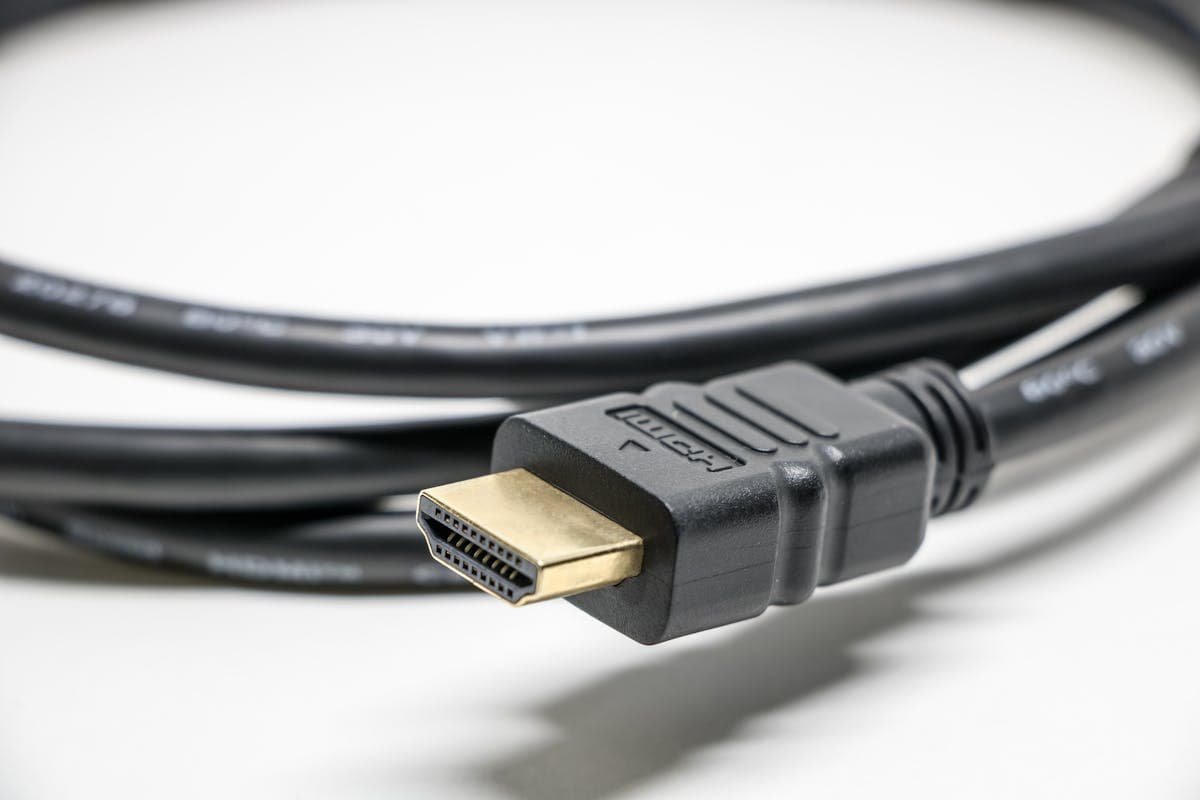
Cause #4: Incompatible HDMI Cable
Not every HDMI cable supports ARC. Standard ARC requires at least a High Speed HDMI cable (HDMI 1.4+). For eARC, you need an Ultra High Speed HDMI cable (HDMI 2.1).
Cable Requirements
Swipe to see the full table
Typical scenario: you're using an old HDMI cable that came bundled with some device purchased five years ago. It carries video perfectly well — but ARC doesn't work because the cable doesn't support the return audio channel.
Solution: purchase a certified High Speed HDMI cable (for ARC) or an Ultra High Speed HDMI cable (for eARC). Don't cut corners — cheap uncertified cables are a frequent source of problems. A cable up to 2 metres long costs €5-15 and solves the problem permanently.
Cause #5: Audio Format Incompatibility
This is a subtler issue. The TV is attempting to send an audio format that your soundbar doesn't support.
Common Conflicts
- Dolby Atmos over ARC: standard ARC cannot carry full Dolby Atmos. If the TV tries to send Atmos, there may be no sound at all. Switch the output format to "PCM" or "Dolby Digital"
- DTS through a soundbar that doesn't support DTS: many budget soundbars support only Dolby Digital, not DTS. Audio from a DTS source simply won't play
- High bitrate audio over ARC: 7.1-channel audio and lossless formats (LPCM 7.1, DTS-HD, Dolby TrueHD) cannot be transmitted over standard ARC — only via eARC
What to Do
- In the TV settings, set the digital audio output format to PCM (guaranteed compatible with all devices)
- If sound appears with PCM — the issue is format incompatibility. Try "Dolby Digital" next — this gives you 5.1 over ARC
- For full Dolby Atmos / DTS:X — you need both the TV and soundbar to support eARC, plus an appropriate cable
Cause #6: HDMI Handshake Needs Resetting
Sometimes HDMI ARC "hangs" — the CEC protocol loses synchronisation between devices. This can happen after a firmware update, input switching, or a power interruption.
How to Reset Properly
- Turn off the TV and soundbar
- Disconnect the HDMI cable from both devices
- Unplug both devices from the mains
- Wait 2 minutes (this is important — capacitors need to discharge)
- Reconnect the HDMI cable — to the soundbar first, then the TV
- Restore power — soundbar first, then TV
- Test the sound
This procedure resolves the problem in roughly 30-40% of cases where the sound "just disappeared" without an obvious cause.
HDMI ARC vs Optical Cable (TOSLINK)
If ARC isn't cooperating, a common question arises: should you fall back to an optical cable? Let's compare:
Swipe to see the full table
Practical advice: if your soundbar is basic (2.0 or 2.1) and you don't need Dolby Atmos, an optical cable works more reliably and simply. ARC makes sense when you want single-remote control (via CEC) or you're using surround sound at 5.1 and above.
When the Problem Is Hardware
You've tried every setting, swapped the cable, power-cycled both devices — and there's still no sound. In that case, the fault may be in the hardware itself:
HDMI Port Failure
The HDMI port on the TV can fail. Causes include:
- Power surge — particularly relevant in Riga, where older buildings often have unstable mains supply
- Mechanical damage — a bent or loose connector from frequent plugging and unplugging
- HDMI chip failure — the IC that processes audio/video signals can burn out
Signs of a faulty port:
- ARC doesn't work with any cable or any soundbar
- The port doesn't detect any connected device at all
- There's video but no sound (or vice versa) on that specific port
- Other HDMI ports function normally
TV Audio Board Failure
If neither ARC, nor the optical output, nor the built-in speakers produce any sound, the problem is likely in the audio processor or the TV's main board. This is repairable, but requires professional diagnosis.
Soundbar Defect
Don't forget that the fault may lie with the soundbar, not the TV:
- Try connecting the soundbar to a different television
- Check whether the soundbar works via Bluetooth or its optical input
- If the soundbar produces no sound through any input, it needs diagnosis
Step-by-Step: What to Do When There's No Sound via HDMI ARC
- Check the port: confirm the cable is plugged into the port labelled ARC/eARC
- Enable CEC: Anynet+ / SIMPLINK / BRAVIA Sync / EasyLink — on both devices
- Select the output: switch the TV's audio output to HDMI ARC
- Set the format: try PCM first, then Bitstream / Dolby Digital
- Replace the cable: use a certified High Speed HDMI (for ARC) or Ultra High Speed (for eARC)
- Power cycle: turn off both devices, disconnect the cable and mains power, wait 2 minutes, reconnect in the correct order
- Update firmware: check for updates on both the TV and the soundbar
- Test with optical: if sound works through an optical cable, the issue is specifically with ARC, not the audio path
If none of these steps resolved the problem, it's time to visit a service centre.
When to Call a Professional
Bring your TV to SATER if:
- Sound via ARC disappeared after a power surge or thunderstorm
- The HDMI port is physically damaged — loose, bent, or scorched
- There's no sound via ARC, the optical output, or the built-in speakers
- All settings are correct, the cable is new — but there's still no sound
- The TV has stopped recognising connected HDMI devices entirely
We repair sound faults on Samsung, LG, Sony, Philips, Hisense, TCL, and other televisions. Diagnostics separate HDMI-ARC settings and external-device problems from speaker, audio-amplifier, and main-board faults, then we quote the repair after inspection.
After inspection, we can tell whether the fault is in settings, the connected device, the speakers, or the TV's audio electronics.
Repair path
Where to go next if this fault is repairable
Related SATER service, brand and fault pages help you understand the repair route and get the device into the right diagnostic flow.
Frequently Asked Questions
Need professional repair?
SATER service centre — Silmaču iela 6, Riga
SATER service — home electronics & appliance repair in Riga