TV Turns On and Off by Itself — Causes and Fixes
Why does your TV turn on or off by itself? All the causes — timers, CEC, capacitors, voltage fluctuations — what to fix at home and when you need repair.
Cottonbro Studio / Pexels
Contents
You wake up in the middle of the night because the TV has switched on by itself. Or you're watching a film and the screen suddenly goes black — only to light up again a minute later. Sound familiar? This is one of the most frustrating issues customers bring to our service centre. And more often than not, there's a specific explanation.
A television that turns on or off on its own can be caused by a dozen different things — from a simple setting you accidentally activated to a serious power supply fault. In this guide, we'll cover every possibility: from Samsung and LG to Sony, Philips, TCL, Hisense and other brands. We'll explain what you can check and fix yourself, and when it's time to visit a repair centre.
Sleep Timer and Power-On Timer
The most mundane yet most common cause — a forgotten timer. Virtually all modern televisions have two types of timer:
Sleep Timer (Auto-Off)
This timer switches the TV off after a set period — 30, 60, 90, or 120 minutes. If someone in the household accidentally enabled it, the TV will shut down every evening at roughly the same time.
Where to find it:
- Samsung: Settings → General → System Manager → Time → Sleep Timer
- LG: Settings → General → Timers → Sleep Timer
- Sony: Settings → Device Preferences → Timers → Sleep Timer
- Philips: Settings → General → Switch Off Timer
Make sure the timer is set to "Off".
Power-On Timer (On Timer)
A lesser-known feature — the automatic power-on timer. It turns the TV on at a scheduled time, for instance to serve as an alarm clock. On Samsung and LG, this function is tucked away in the same timers section.
Check: Settings → Time → On Timer → Off.
If you have a Samsung set from 2020 or later, also check the "Alarm" feature in the SmartThings section. It, too, can switch the TV on at a scheduled time.
HDMI-CEC: When Other Devices Control Your TV
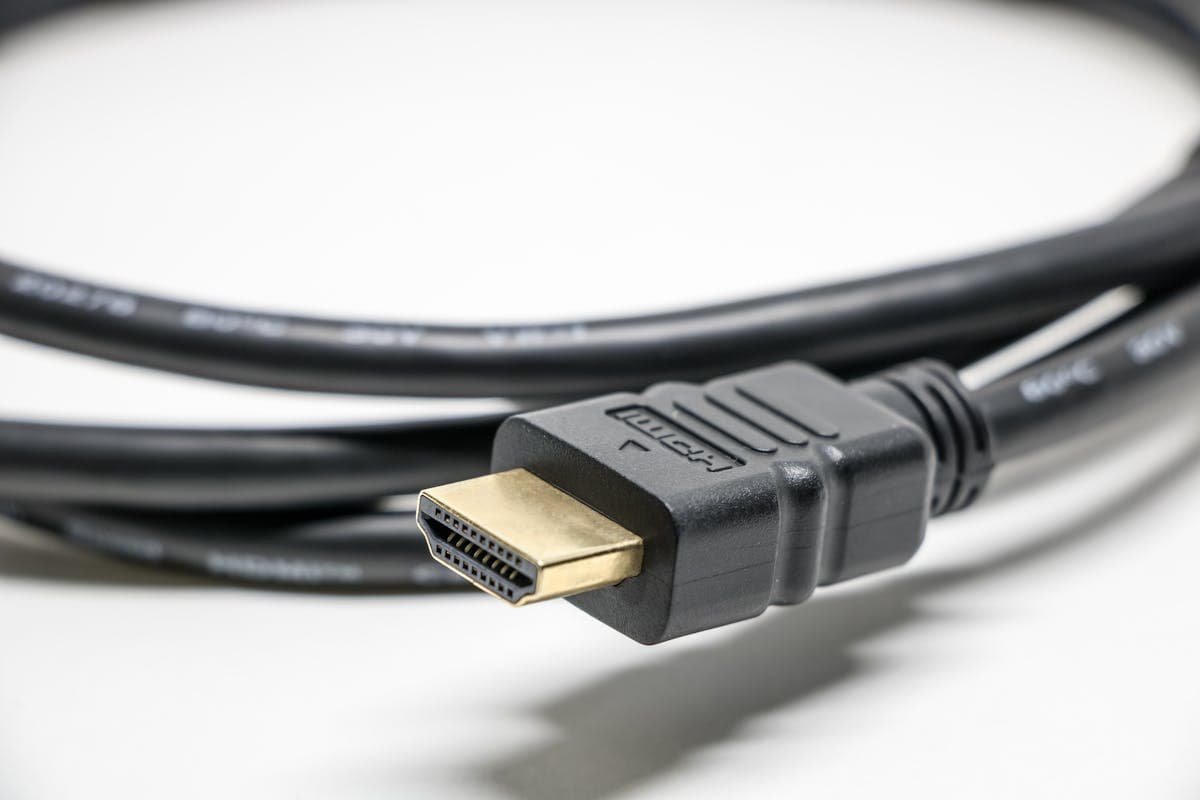
HDMI-CEC (Consumer Electronics Control) is a protocol that allows HDMI-connected devices to control one another. Turn on your set-top box — the TV powers up automatically and switches to the correct input. Convenient? Certainly. But sometimes it leads to unexpected wake-ups.
How It Works
When you power on a PlayStation, Xbox, Chromecast, Apple TV, digital TV box, or even a laptop connected via HDMI, the device sends a CEC "One Touch Play" command, and the TV obediently switches on.
Why the TV Turns On for No Apparent Reason
- A console or set-top box is updating — downloading updates can "wake" the device, which in turn wakes the TV
- Chromecast picks up a signal — a phone on the same network accidentally initiates a cast
- The router has rebooted — network devices re-establishing connections can send CEC signals
- A set-top box in standby — some devices periodically "wake" for synchronisation
How to Disable CEC
Each manufacturer gives CEC its own marketing name:
- Samsung: Anynet+ → Settings → General → External Device Manager → Anynet+ (HDMI-CEC) → Off
- LG: SimpLink → Settings → General → SIMPLINK (HDMI-CEC) → Off
- Sony: BRAVIA Sync → Settings → BRAVIA Sync Settings → BRAVIA Sync Control → Off
- Philips: EasyLink → Settings → General → EasyLink → Off
- TCL / Hisense: Settings → System → HDMI-CEC → Off
Tip: if you'd rather not disable CEC entirely (it's useful when a set-top box auto-switches the input), turn off only the "Auto Power On" option — it's available in the CEC settings on most TVs.
Eco Mode and Idle Auto-Off
Modern televisions comply with European energy regulations and include several "smart" power-off features:
Auto-Off When No Signal Is Detected
If the active HDMI input has no signal (for example, you've turned off the console but the TV is still set to that input), the TV will display a warning after 10-15 minutes and switch itself off.
Where to adjust:
- Samsung: Settings → General → Power and Energy Saving → Auto Power Off
- LG: Settings → General → Energy Management → Auto Off When No Signal
Auto-Off After 4 Hours
Under EU regulations, if the remote hasn't been used for 4 consecutive hours, the TV assumes you've fallen asleep and switches off. This is a mandatory feature for the European market, but it can be disabled:
- Samsung: Settings → General → Power and Energy Saving → Auto Power Off → Off
- LG: Settings → General → Energy Management → 4-Hour Auto Off → Off
- Sony: Settings → Device Preferences → Power → Idle TV Standby
- Philips: Settings → General → Eco Settings → Switch Off Timer
Eco Mode and Motion Sensor
Certain Samsung models (QLED, Neo QLED 2022+) and LG sets (C3, G3 and newer) feature a presence sensor. If the TV detects no movement in the room, it may dim the screen or switch off. Check your settings:
- Samsung: Settings → General → Power and Energy Saving → Motion Detection
- LG: Settings → General → Energy Management → Screen Off When No Motion
Firmware Bugs and Software Crashes
A Smart TV is essentially a computer running an operating system. And like any computer, it can malfunction.
Common Software Causes
- A frozen app — Netflix, YouTube, or the built-in browser freezes and triggers a system restart
- A failed update — the firmware updated with an error, leaving the system unstable
- Cache overflow — temporary files have filled the memory, causing periodic reboots
What to Do
-
Fully restart the TV — turn it off with the remote, unplug the power cord, wait 2 minutes, then plug it back in. A full 2 minutes, not 10 seconds — the capacitors need time to discharge.
-
Update the firmware — go to Settings → Support → Software Update. If the TV is connected to the internet, check for updates. If not, download the update from the manufacturer's website onto a USB drive.
-
Clear the app cache (Samsung Tizen, LG webOS): remove unused apps and clear the cache in the settings of each remaining app.
-
Factory reset — a last resort. Settings → Support → Self Diagnosis → Reset. You'll need to re-enter your Wi-Fi credentials, reconfigure channels and apps, but this resolves most software problems.
Power Supply Failure — Swollen Capacitors
If the TV switches off abruptly — no warning, no shutdown menu, the screen simply goes dark — and occasionally turns back on after a few seconds, the cause is most likely hardware.
Electrolytic Capacitors
The most common hardware cause of spontaneous shutdowns is swollen electrolytic capacitors on the power supply board. Capacitors smooth voltage and filter interference. Over time — especially under heat — the electrolyte inside dries out, the capacitor loses its capacitance, and it can no longer do its job.
Symptoms:
- The TV shuts off 5-30 minutes after switching on (as it heats up, failing capacitors lose their effectiveness)
- The LED indicator blinks when the TV shuts down
- The TV won't start on the first attempt — you need to power-cycle it several times
- A quiet click is audible when the TV shuts off
Which TVs are affected:
- Samsung UE/NU/RU series 2015-2019 — a well-known issue with capacitors on the BN44 board
- LG 49/55UJ, 49/55UK series — a documented issue with EAY-series power supplies
- Sony Bravia 2016-2018 — capacitors on the G-Board
- Philips 2015-2019 — power boards with CapXon and Su'scon capacitors
Replacing capacitors is a standard repair procedure that we carry out daily. The cost is incomparably lower than buying a new television.
Relays and Transistors
Less commonly, the cause is a faulty relay on the power board (identifiable by a distinctive clicking sound at power on/off) or a failed power transistor. The symptoms are the same — sudden shutdown — but the repair requires precise diagnosis.
IR Interference from Other Devices
The TV receives remote control commands through an infrared (IR) receiver. If another device in the room emits an IR signal on the same frequency, the TV may interpret it as a "power on" or "power off" command.
Sources of Interference
- Other remote controls — a remote for the air conditioner, fan, or soundbar lying on the sofa, with someone accidentally pressing a button
- LED light bulbs — low-quality LED bulbs can emit infrared interference, especially on a dimmer
- Sunlight — direct sunlight hitting the IR receiver contains an IR component and can theoretically trigger a false command
- Decorative IR heaters — emit a strong IR signal
How to Check
Cover the IR receiver on the TV (usually located at the bottom centre) with opaque tape for 1-2 days. If the spontaneous switching stops, the problem is IR interference. The next step is to identify and eliminate the source.
Important: with the receiver covered, the remote won't work either — use the SmartThings app (Samsung), LG ThinQ app, or the physical buttons on the TV instead.
Stuck or Damaged Power Button
On most televisions, the power button is located on the bottom edge or the rear panel. If the button sticks, is mechanically damaged, or if dust has worked its way into the gap, the contact can short intermittently.
How to Check
- Press the button several times — it should click cleanly and spring back. If it feels "sticky", this is likely the cause
- Inspect the button — look for visible damage, moisture, or dirt
- If it's a joystick-type button (Samsung, LG), try carefully cleaning around it with a cotton bud dipped in isopropyl alcohol
In most cases, the button can be replaced at the service centre for a modest cost.
Voltage Fluctuations in the Mains Supply
This factor is particularly relevant in Riga — especially in the older buildings of the city centre, Purvciems, Pļavnieki, and Ziepniekkalns, where the wiring hasn't been updated since the Soviet era.
How Voltage Affects the TV
The TV's power supply is designed for a stable 220-230 V input. During fluctuations — a momentary spike to 240-250 V or a dip to 190-200 V — the power supply's protection circuit shuts the TV down to prevent damage to the electronics.
Characteristic signs of voltage problems:
- The TV turns off and on during thunderstorms
- It shuts down at the same time as high-power appliances are switched on — a washing machine, electric kettle, or vacuum cleaner
- The problem only occurs at certain times of day (peak grid load)
- Lights or other appliances flicker alongside the TV
What to Do
- Connect through a surge protector — a mains filter will guard against momentary spikes, but won't solve chronic voltage issues
- Try a different socket — plug the TV into another outlet, preferably in a different room
- Call an electrician — if the problem is systemic, the wiring or the circuit breaker in the distribution board may need replacing
Firmware Updates as a Cause
Sometimes the problem appears "out of nowhere" — the TV was working fine, then suddenly started rebooting on its own. A common culprit is an automatic firmware update.
Samsung
Samsung regularly releases updates for Tizen OS. Occasionally these contain bugs that cause spontaneous reboots. Check your firmware version: Settings → Support → About This TV. Search for known issues with your version on the Samsung Community forums.
LG
LG's webOS is updated less frequently, but problems do occur. If reboots began after an update, try a factory reset: Settings → General → Reset to Factory Settings.
Sony
Sony's Android TV / Google TV platform receives the most frequent updates and has the greatest number of software stability issues. Android component updates via Google Play sometimes conflict with the TV's own firmware.
Step-by-Step Diagnostic Checklist
If your TV is turning on or off by itself, work through this list:
- Check the timers — disable Sleep Timer, On Timer, and all schedules
- Disable HDMI-CEC — or at least the auto-power-on option within CEC settings
- Check eco settings — auto-off on idle, no signal, and 4-hour timer
- Perform a full restart — unplug from the mains for 2 minutes
- Update the firmware — or roll back if the problem started after an update
- Check for IR interference — cover the IR receiver for 1-2 days
- Inspect the power button — look for sticking
- Try a different socket — rule out voltage issues
- Factory reset — if nothing else has worked
If, after all these steps, the TV continues to turn on or off by itself, the problem is hardware-related: capacitors, relays, or other components on the power supply board. This requires professional diagnosis and repair.
When It's Time to Visit the Service Centre
- The TV shuts off abruptly — no menu, no warning, the screen simply goes dark
- The LED indicator blinks several times on startup and the TV won't boot
- A relay click is audible during spontaneous shutdowns
- The TV reboots in a loop — powers on, shows the logo, then switches off again
- The problem is getting worse — first once a day, then every hour, then every 10 minutes
- All software settings have been checked and the problem persists
We repair power-cycling faults on Samsung, LG, Sony, Philips, TCL, Hisense, Xiaomi, and other televisions. Diagnosis separates software resets, HDMI-CEC triggers, power-board faults, overheating, and main-board failures before parts are replaced.
Diagnosis identifies the cause and shows whether the next step is a software reset, settings change, cleaning, power-board repair, or main-board repair.
Repair path
Where to go next if this fault is repairable
Related SATER service, brand and fault pages help you understand the repair route and get the device into the right diagnostic flow.
Frequently Asked Questions
Need professional repair?
SATER service centre — Silmaču iela 6, Riga
SATER service — home electronics & appliance repair in Riga