Hisense and TCL: Common Budget TV Problems and How to Fix Them
Smart TV freezing, Wi-Fi dropping, dark screen? A guide to the most common Hisense and TCL problems — VIDAA, Roku, Google TV, backlight, HDMI.
Cottonbro Studio / Pexels
Contents
Hisense and TCL are the two most popular budget TV brands in Latvia. Through retailers like 1a.lv, Euronics and other electronics shops, they have sold in their thousands: for €200–400, buyers get a 50–55 inch 4K Smart TV. It sounds like a great deal — until the television starts freezing, dropping Wi-Fi, or developing dark patches on the screen after a year and a half.
At SATER service centre, we are seeing Hisense and TCL sets more and more frequently. Five years ago, they were the odd case; today, these brands consistently rank in the top three for repair requests — just behind Samsung and LG. Here is what goes wrong most often, what you can try fixing yourself, and when professional repair is the right call.
Why Budget TVs Break Down More Often
It is not that Hisense or TCL are poor manufacturers. Both are major global companies: Hisense produces Toshiba televisions, and TCL owns the Thomson brand. The issue is component cost-cutting in budget product lines.
Where they cut corners:
- Power supplies — capacitors rated for minimal lifespan
- LED backlighting — LEDs with a shorter service life
- RAM — 1–1.5 GB, barely sufficient for modern Smart TV platforms
- Wi-Fi modules — often single-band (2.4 GHz only), with weak reception
- Thermal paste and cooling — minimal, leading to processor overheating
Mid-range and premium models (Hisense U7, U8; TCL C7, C8) use higher-quality components and break down far less frequently. Problems are concentrated in budget series: Hisense A4, A6, B-series; TCL P6, S5, and unnumbered series.
Smart TV Platform Issues: VIDAA, Roku TV, Google TV
Each manufacturer uses its own platform, and each has characteristic weak points.
Hisense VIDAA: Freezing and Outdated Apps
VIDAA is Hisense's proprietary platform. It is lighter than Android TV and boots faster, but:
Common problems:
- The interface freezes after 20–30 minutes of use
- Apps crash or fail to load
- Netflix and YouTube work, but less popular services (HBO Max, Apple TV+) are either unsupported or unstable
- Updates are infrequent — Hisense drops support for models after 2–3 years
- The VIDAA remote with dedicated streaming buttons stops responding
What to try:
- Restart the TV — unplug from the wall for 60 seconds
- Update firmware: Settings → Support → System Update
- Clear cache: Settings → Apps → select an app → Clear Cache
- Factory reset: Settings → Support → Restore → Factory Reset (warning: all settings will be erased)
TCL Roku TV: Connection Drops and Sluggish Performance
TCL sells televisions with Roku TV and Google TV in Europe. Roku models are simpler and more stable, but still have their issues:
Common problems:
- Roku OS stops receiving updates on older models
- The TV "forgets" the Wi-Fi network after each power-off
- Slow channel loading — apps on Roku are called "channels"
- Restarts take 2–3 minutes
- Black screen on startup — freezes on the Roku logo
What to try:
- Restart: Settings → System → Power → System Restart
- Check Wi-Fi: Settings → Network → Connection Check
- Update software: Settings → System → Software Update → Check Now
- Reset network settings: Settings → System → Advanced Settings → Network Connection Reset
TCL and Hisense with Google TV: Running Out of Storage
Some Hisense and TCL models run Google TV (Android TV). The platform is feature-rich but resource-hungry:
Common problems:
- "Not enough space" — after installing just 5–6 apps
- Google TV freezes on the home screen
- Built-in Chromecast cannot find devices
- Voice assistant does not respond
What to try:
- Free up storage: Settings → Apps → Show All → remove unused ones
- Clear the cache for all apps
- Disable automatic installation of recommended apps
- Restart: unplug from the wall for 2 minutes
Wi-Fi Problems on Hisense and TCL
Dropping Wi-Fi is the single most common complaint about budget televisions. Here is why it happens and what to do.
TV Keeps Losing Wi-Fi
- Check the distance to your router — budget models have weak Wi-Fi receivers. If the router is in another room, the signal may be insufficient
- Switch to 5 GHz — if the TV supports dual-band Wi-Fi (check the specifications). The 5 GHz band has less interference from neighbouring networks
- Set a static IP and DNS: Settings → Network → select your network → Advanced Settings → change DNS to 8.8.8.8 or 1.1.1.1
- Disable Quick Start — this feature sometimes prevents the TV from reconnecting to Wi-Fi properly after waking
- Update your router's firmware — older routers may be incompatible with the TV's Wi-Fi module
Wi-Fi Connected but Streaming Buffers
- Check the connection speed: most platforms have a built-in test
- 4K streaming requires at least 25 Mbit/s consistently
- Try connecting an Ethernet cable directly — if the problem disappears, the Wi-Fi module is to blame
- Disconnect other devices from Wi-Fi while watching
If Wi-Fi drops regularly and none of the above helps, the Wi-Fi module itself is likely faulty. It is a replaceable component.
Picture Problems
Dark Patches and Uneven Backlighting
The most common hardware issue on budget LED TVs:
- Dark corners or edges — one or more backlight LEDs have failed
- Backlight bleed — bright patches along the edges on dark scenes. On budget models, some bleed is normal, but if it worsens over time, the LED strip is degrading
- Completely dark screen but sound works — the backlight has burnt out. Shine a torch on the screen: if you can see a faint image, this confirms it
What you can do:
- Reduce backlight brightness to 70–80% — this lowers stress on the LEDs and extends their lifespan
- Enable Dynamic Backlight — the TV will adjust brightness automatically
- Disable Eco Mode — it sometimes causes flickering
LED backlight replacement is a standard procedure. At SATER service centre, we replace backlights on Hisense and TCL televisions, sourcing compatible LED strips.
Lines on the Screen
- Thin vertical lines — T-Con board or panel ribbon cable issue
- Horizontal bands — often related to the Main Board or ribbon cable
- Wide coloured bands — LCD panel damage (repair is not cost-effective if the panel is cracked)
Screen Flickering
- Disable Motion Smoothing / Motion Clarity
- Change the refresh rate: if the TV supports both 60 Hz and 50 Hz, try the other setting
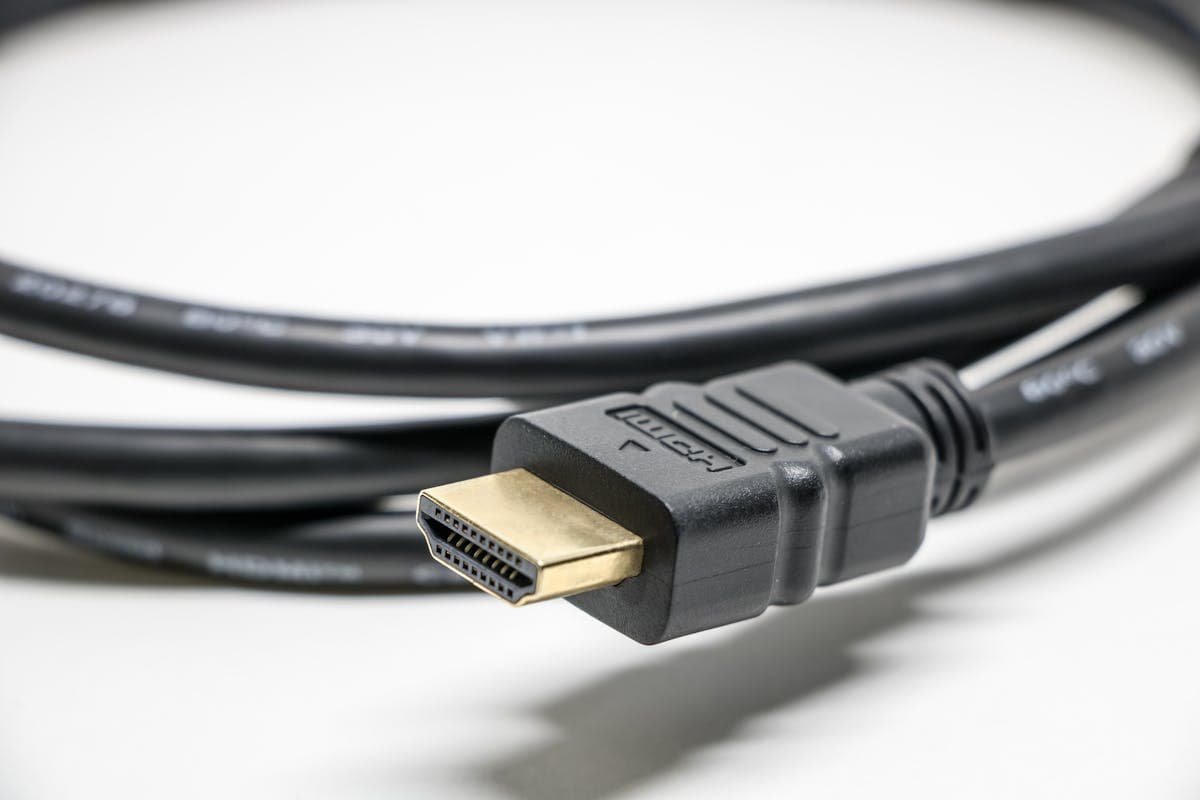
- Check the HDMI cable — poor-quality cables cause flickering at 4K
- Update firmware
HDMI Problems
Hisense and TCL budget models sometimes have HDMI compatibility issues:
- No signal from a set-top box or games console — try a different HDMI port. On budget models, not all ports support HDMI 2.0/2.1
- No sound via HDMI ARC — make sure ARC is enabled in the sound settings, and use the HDMI port marked ARC (usually HDMI 1 or HDMI 2)
- HDMI CEC not working — enable CEC in settings: Hisense calls it Anyview Cast or HDMI CEC; TCL calls it T-Link
- Image flickers when connecting a PC — change the resolution to 1080p@60Hz instead of 4K, or replace the HDMI cable with a certified High Speed one
Remote Control Problems
Remote Not Responding
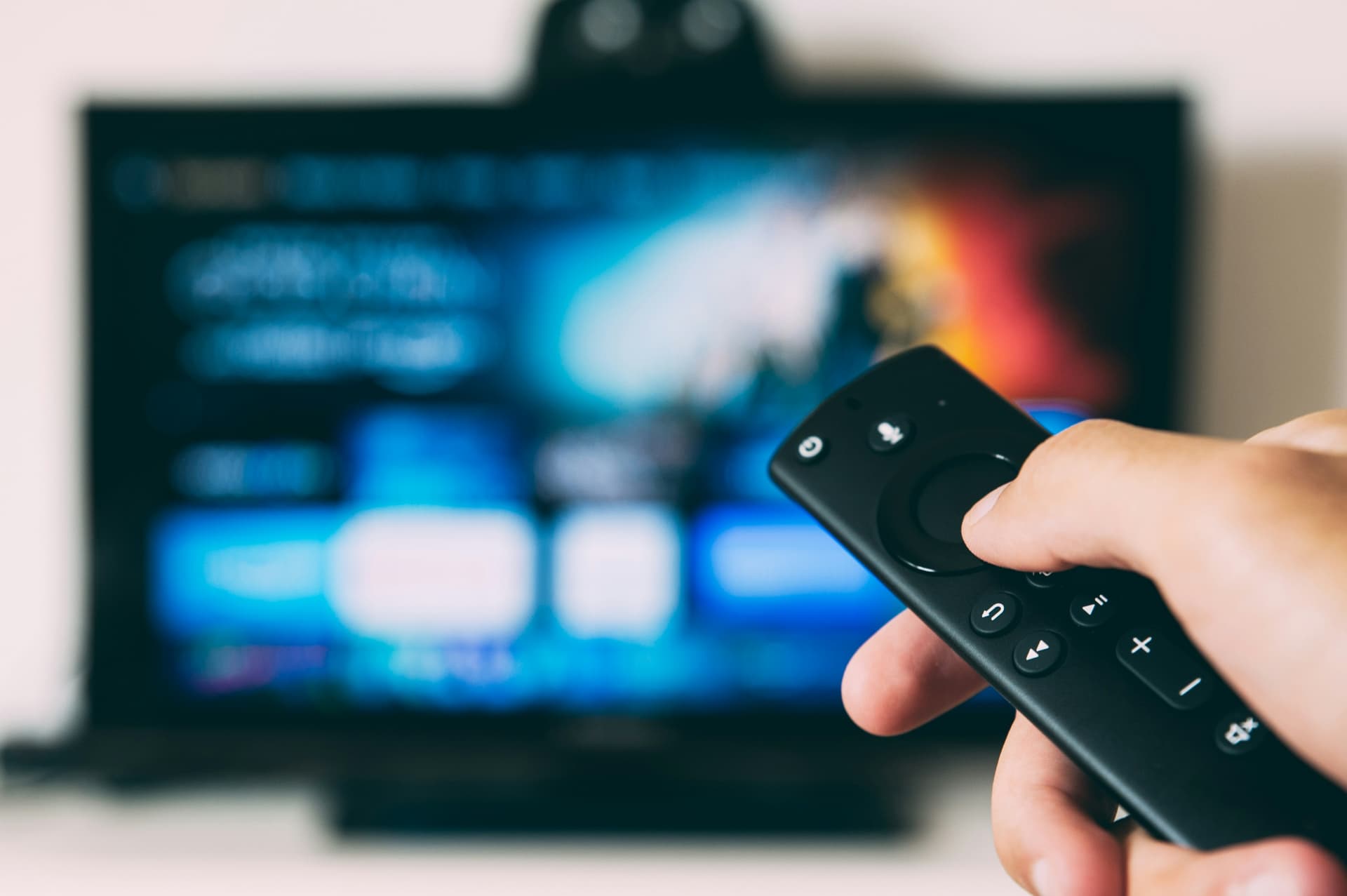
- Replace the batteries (AAA)
- Check the IR sensor on the TV — it may be blocked
- Point your phone camera at the remote and press a button — if you see a flash through the camera, the remote is working and the issue is with the TV sensor
- Try controlling the TV via an app: Hisense RemoteNow or TCL Home on your smartphone
Bluetooth Remote Won't Pair
On models with a Bluetooth remote:
- Hold the remote within 1 metre of the TV
- Press and hold the Home and Back buttons simultaneously for 5 seconds (Hisense) or press the pairing button inside the battery compartment (TCL)
- Wait for the pairing message to appear on screen
- If that doesn't help — factory-reset the TV
Firmware and Updates
How to Update Hisense Firmware
- Over the network: Settings → Support → System Update → Check for Update
- Via USB: download the file from hisense-eu.com/support, copy it to a USB drive (FAT32), insert into the TV → it will detect the update automatically
How to Update TCL Firmware
- Over the network: Settings → System → About TV → Software Update
- Via USB: download from tcl.com/eu/support, copy to a USB drive (FAT32), insert into the TV while it is switched off, then turn it on — the firmware will install
Important: if the TV freezes during an update — do not unplug it. Wait at least 30 minutes. If the TV won't boot afterwards, it is repairable, but requires reflashing via the service interface.
Repair or Replace: Which Makes More Sense?
The key question with budget TVs is whether it is worth repairing a set that cost €250–400.
Repair makes sense if:
- The TV is less than 3–4 years old
- The problem is localised: power supply, backlight, Wi-Fi module, T-Con board
- The repair cost is under 40–50% of the price of a new TV
- The screen is not physically damaged
Replacement is more sensible if:
- The TV is over 5 years old and the platform no longer receives updates
- The LCD panel is damaged (cracked, multiple dead pixels)
- The issue is the Main Board on a model for which spare parts are no longer manufactured
At SATER service centre, we will always give you an honest assessment of whether repair is worthwhile. If the repair cost approaches the price of a new television, we will tell you straight.
How to Extend the Life of a Budget TV
A few tips to help your Hisense or TCL last longer:
- Reduce backlight brightness to 70–80% — this extends LED lifespan
- Use a surge protector — protection against voltage spikes
- Don't leave it on standby — switch off fully or unplug when not in use
- Ensure ventilation — don't place in enclosed cabinets; leave 10 cm clearance above and on the sides
- Restart regularly — once a week, unplug for a minute. This clears the cache and prevents freezing
- Update firmware when available — many issues are resolved through software
When to Visit a Service Centre
Not every problem is solved by a restart. Here is when professional repair is needed:
- TV won't turn on — indicator blinks or clicks, but the screen stays dark
- Dark screen with sound — burnt-out backlight, LED strip replacement needed
- Lines on the screen — T-Con board or panel ribbon cable
- Wi-Fi drops constantly — faulty Wi-Fi module
- TV won't boot after a failed update — reflashing required
- Burning smell, sparking, clicking — disconnect from the mains immediately and bring it in for repair
Hisense and TCL sets are modern TVs with fairly clear fault patterns: power supplies, backlights, main boards, and Smart TV software are the usual suspects. A diagnostic check shows the exact cause, and we will tell you honestly whether repair is worthwhile.
Repair path
Where to go next if this fault is repairable
Related SATER service, brand and fault pages help you understand the repair route and get the device into the right diagnostic flow.
Frequently Asked Questions
Need professional repair?
SATER service centre — Silmaču iela 6, Riga
SATER service — home electronics & appliance repair in Riga