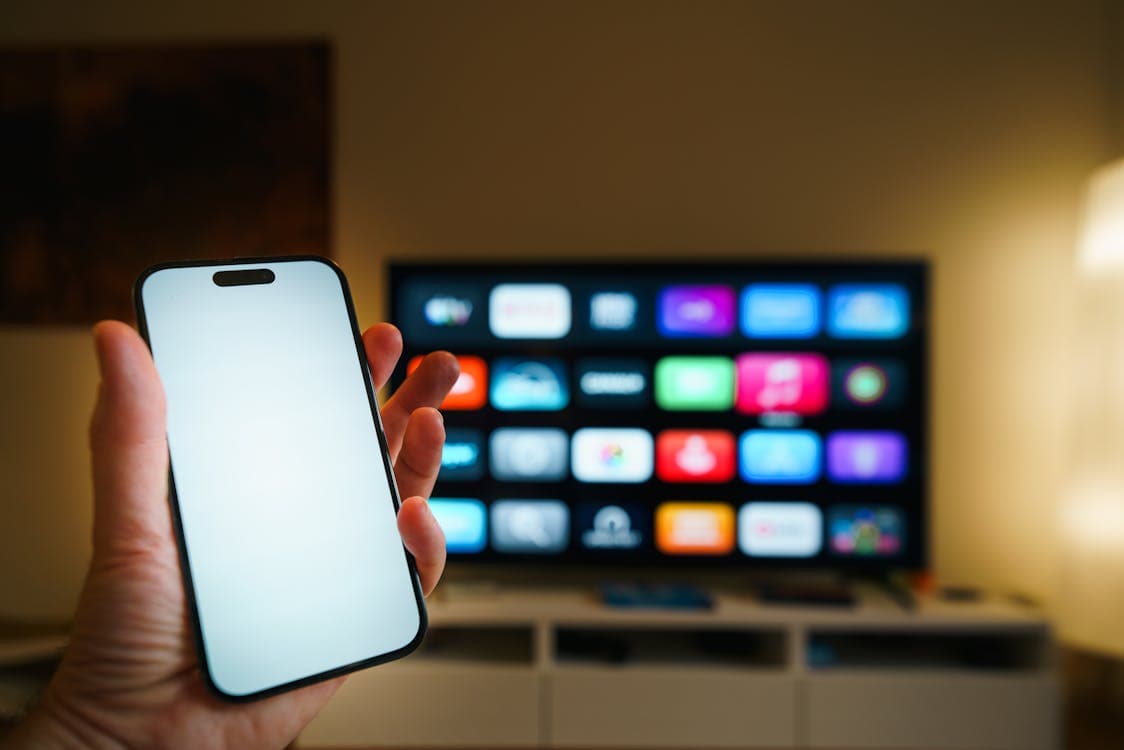
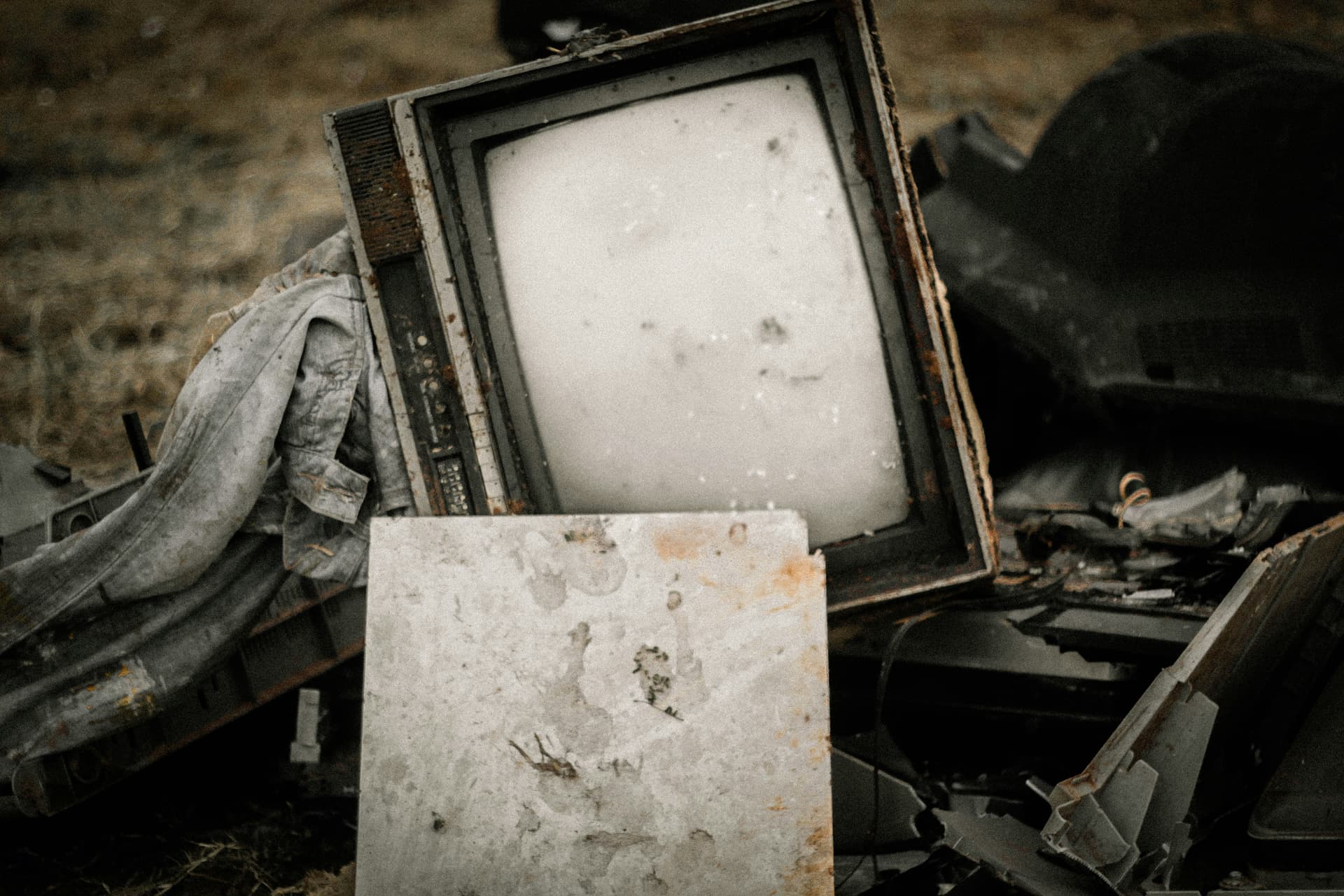
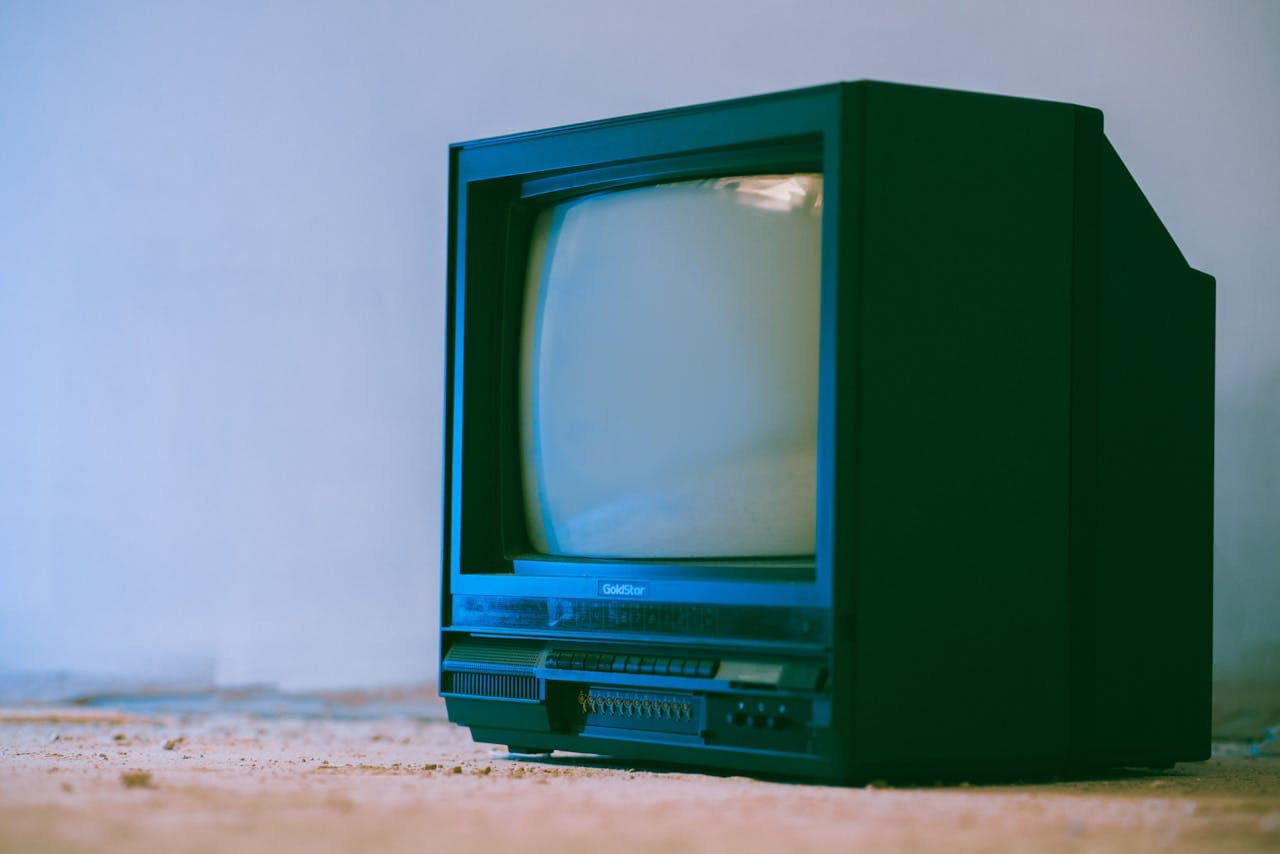
OLED Burn-In — Prevention, Detection, and What Can Be Done
What OLED burn-in is, how to spot early signs, prevention (Pixel Shift, Screen Saver, ABL), LG and Samsung built-in tools, and whether it can be repaired.
Tim Mossholder / Pexels
Contents
OLED televisions represent the pinnacle of picture quality: perfect blacks, infinite contrast, and the widest viewing angles. LG, Sony, Philips, Panasonic, and now Samsung with QD-OLED — all flagship models use organic light-emitting diodes. But this technology has one well-known weakness: screen burn-in.
In this article, we'll examine in detail what OLED burn-in is, how it manifests, whether it can be prevented, and what to do if it's already happened.
What OLED Burn-In Is: The Physics
OLED burn-in isn't "burning" in the literal sense. More accurately, it's uneven degradation of organic compounds.
Each pixel on an OLED screen is a miniature organic light-emitting diode that produces light independently, without a backlight. The organic materials that make up this diode gradually degrade — they lose the ability to shine as brightly as when new. This is a normal process that occurs uniformly across the entire panel, manifesting as a gradual reduction in overall brightness over tens of thousands of hours.
The problem arises when different areas of the screen degrade at different rates. If the same static element (such as a channel logo or gaming interface) is displayed for hours on end, the pixels in that area work harder and degrade faster than the surrounding ones. The result is a "phantom" image — a faint silhouette of the logo or interface visible even when different content is on screen.
The Difference Between Burn-In and Image Retention
It's important to distinguish between two phenomena:
-
Image retention — a temporary effect where a "ghost" of the previous image is visible on screen for a few minutes or hours before disappearing. This is a normal characteristic of OLED panels and is not damage. It resolves on its own or after running the built-in pixel refresh cycle.
-
Burn-in — permanent damage caused by irreversible uneven degradation of the organic layers. The image doesn't disappear and worsens over time. This is a genuine problem.
If you see a "ghost" after prolonged viewing of a single channel, it's most likely image retention, which will pass. If the "ghost" is permanently visible, regardless of content, that's burn-in.
How to Spot Early Signs
Burn-in develops gradually. Early signs are easy to miss because they only show up on certain colours and at certain brightness levels.
The Grey Field Test
The simplest way to check your screen:
- Display a solid mid-grey image (50% grey) on the TV. YouTube has test videos: search "OLED burn-in test gray screen" or "OLED screen uniformity test."
- View the screen from 1-2 metres away.
- If you can see lighter or darker areas in the shape of logos, taskbars, or other interface elements, this is a sign of uneven wear.
What to Look For
- Channel logo. If you frequently watch a single channel (CNN, BBC, a news channel with a permanent logo), check the corner of the screen where the logo typically appears.
- Gaming HUD. Health bar, mini-map, ammo counter — elements that don't change position and can "imprint."
- Taskbar. If the TV is used as a monitor with Windows or macOS — the bottom taskbar and top menu bar.
- App navigation panel. The sidebar of YouTube, Netflix, and other streaming services.
When to Check
We recommend checking the screen every 6-12 months. This is especially important if you actively game on an OLED TV or watch a lot of news channels.
Prevention Methods
Modern OLED TVs are equipped with numerous built-in protection mechanisms. But users can also take several steps themselves.
Built-In Protection Mechanisms
Pixel Shift
All modern OLED TVs feature Pixel Shift. It imperceptibly shifts the entire image by 1-2 pixels every few minutes, preventing constant strain on the same pixels. Pixel Shift is enabled by default — don't disable it.
Auto Brightness Limiter (ABL)
ABL automatically reduces screen brightness when displaying bright static images. If a large white area is on screen, ABL slightly dims the brightness to slow degradation. This may be noticeable (the screen dims slightly during bright scenes), but it's a protective feature. Don't try to disable it via service menus.
Screen Saver
When there's no activity (no remote presses), the TV automatically activates a screen saver — an animated image that continuously changes. On LG, it's a floating logo; on Sony, a moving abstract pattern. The screen saver typically activates after 2 minutes of inactivity.
Automatic Logo Dimming (Logo Luminance Adjustment)
Some LG and Sony models detect static bright elements (channel logos) and automatically reduce their brightness. The feature works invisibly and requires no configuration.
LG Pixel Refresher
LG OLED TVs have a dedicated Pixel Refresher function that compensates for uneven degradation:
-
Automatic Pixel Refresher runs every time you switch the TV off after 4+ hours of use. The process takes 7-10 minutes and runs whilst the TV is off (the screen is dark but the TV is working). Don't unplug the TV during this time.
-
Manual Pixel Refresher — a forced deep cycle that can be launched from the menu (Settings → OLED Care → OLED Panel Care → Pixel Refresher → Start Now). It takes approximately one hour. LG recommends using the manual Pixel Refresher no more than once a year — frequent use shortens panel life.
Samsung Panel Care (QD-OLED)
Samsung QD-OLED TVs (S90 and S95 series) have similar features:
- Panel Care — automatic panel maintenance when switching off.
- Pixel Shift — automatic image shifting.
- Logo Brightness — automatic dimming of static logos.
- Screen Saver — screensaver during inactivity.
All these features are enabled by default. They can be checked and configured under Settings → General → Panel Care.
Gaming on OLED: Risks and Recommendations
Gamers are the highest-risk group for OLED burn-in. Gaming HUDs contain numerous static elements: health bars, mini-maps, ammo counters, ability indicators. Many games display these elements in the same screen positions for hours.
How to reduce the risk:
- Rotate games. Different games have different HUD elements in different screen positions. Rotating reduces the strain on specific areas.
- Use the option to hide the HUD. Many modern games allow you to reduce HUD opacity or hide it entirely.
- Take breaks. Don't game for 10-12 hours straight on an OLED. Every 2-3 hours, give the TV a rest — switch to full-screen video content or turn the TV off.
- Lower brightness in game mode. OLED Brightness at 50-70% for gaming provides a sufficiently bright image with considerably less panel stress.
- Enable Game Mode but don't disable Pixel Shift. Game Mode reduces input lag, but Pixel Shift continues to operate within it.
News Channels: The Logo Killer
News channels are the second typical burn-in scenario. CNN, BBC News, LTV, TV3, and any other channel display a logo and news ticker permanently. If you watch news for 4-6 hours daily on one channel, the channel logo can "imprint" on the panel over 2-3 years.
How to reduce the risk:
- Rotate channels — even when watching news, switch between different channels.
- Lower brightness during extended news viewing.
- Use streaming services for news — they typically don't display a permanent logo.
Can Burn-In Be Fixed?
Image Retention (Temporary)
Yes. Temporary image retention resolves on its own within minutes or hours. You can speed this up:
- Play varied video content (a film with dynamic scenes) for 30-60 minutes.
- Run the automatic Pixel Refresher (for LG) — simply switch the TV off with the remote, and it will run automatically.
- Use the built-in test patterns to "level out" the panel.
Burn-In (Permanent)
Unfortunately, genuine burn-in is irreversible. The organic compounds that have degraded unevenly cannot be "restored." But there are options:
- Manual Pixel Refresher (LG) can slightly reduce the visibility of mild burn-in by "bringing up" the degradation level of surrounding pixels to match the burnt-in ones. But this only works for early stages.
- OLED panel replacement — the only complete solution for serious burn-in. It's a costly procedure: the panel represents a significant portion of a new TV's price. But for premium models (77-83" OLED), it may be worthwhile.
- Live with it. If the burn-in is mild (visible only on a grey background), it may not be noticeable during normal viewing of varied content.
Panel Replacement: What You Need to Know
OLED panel replacement is a major procedure that should be carried out by a qualified specialist:
- The panel is the most expensive component in the TV (60-80% of a new unit's cost).
- Panel availability depends on the model and the TV's age. For models over 5 years old, panels may be unavailable.
- Replacement takes several hours and requires specialist equipment.
- After replacement, the TV effectively has a brand-new screen with a full lifespan ahead.
Before committing to replacement, it's sensible to weigh up whether it's worth doing or whether the money would be better spent on a new TV with improved burn-in resistance.
At the SATER service centre, we'll carry out a diagnosis, assess the severity of the burn-in, and help you make an informed decision.
Myths About OLED Burn-In
"OLED burns in within six months"
Untrue. Under normal use (varied content, 6-8 hours per day), visible burn-in is unlikely within the first 5-7 years. Early burn-in occurs only under extreme use: a static image at maximum brightness for 12-16 hours every day.
"Pixel Refresher erases burn-in"
Partly true. Pixel Refresher can reduce the visibility of mild image retention and early-stage burn-in. But it doesn't restore degraded organic compounds — it "levels out" the degradation of surrounding pixels, essentially ageing the entire panel slightly to reduce the visible difference. Frequent use of manual Pixel Refresher shortens overall panel life.
"QD-OLED doesn't burn in"
Not quite. Samsung QD-OLED uses blue OLED emitters with quantum dots for conversion to red and green. The design differs from W-OLED (LG), and Samsung claims enhanced burn-in resistance. But QD-OLED still uses organic light-emitting diodes that are subject to degradation. The burn-in threshold may simply be higher.
"The warranty covers burn-in"
This depends on the manufacturer and terms. LG in some regions offers a 2-year OLED panel warranty against burn-in, but with conditions (normal domestic use). Samsung also provides certain guarantees for QD-OLED. However, if the TV is used as an advertising screen or information display (commercial use), the warranty typically doesn't cover burn-in.
About Us
OLED burn-in needs a careful repair decision. We inspect the panel, run uniformity tests, check compensation cycles, and compare panel replacement cost with the value of the TV before recommending repair.
If the issue is image retention rather than permanent burn-in, settings correction and panel maintenance may be enough.
Repair path
Where to go next if this fault is repairable
Related SATER service, brand and fault pages help you understand the repair route and get the device into the right diagnostic flow.
Frequently Asked Questions
Need professional repair?
SATER service centre — Silmaču iela 6, Riga
SATER service — home electronics & appliance repair in Riga