Sony TV Common Problems and Solutions: BRAVIA, Android TV, HDMI ARC
Sony TV troubleshooting guide. BRAVIA won't turn on, Android TV freezing, no sound via HDMI ARC — step-by-step fixes.
cottonbro studio / Pexels
Contents
Sony BRAVIA TVs are renowned for their exceptional picture quality. The Cognitive Processor XR, Dolby Vision and Dolby Atmos support — Sony technology is worth every penny. But even Japanese engineering has its weak points. Over more than 30 years at SATER service centre in Riga, we've repaired hundreds of Sony TVs — from the classic Trinitron CRTs to the latest BRAVIA XR models. Here are the most common problems Sony TV owners bring to us, and what you can try at home before visiting a specialist.
Sony TV Won't Turn On
This is the most common complaint. You press the button — and nothing happens. Or the indicator blinks, but the screen stays black.
Basic checks:
- Make sure the wall outlet works — plug in another appliance to test
- Check the power cable: it should be firmly connected both to the TV and the outlet
- Perform a full power reset: unplug the TV, wait 2 minutes (Sony TVs need longer than other brands — the internal capacitors discharge more slowly), then plug back in
- Press the power button on the TV itself — if the remote is the problem, your TV may be perfectly fine
Indicator blinking patterns — diagnostic codes:
On Sony BRAVIA TVs, the indicator blinks a specific number of times — this is an error code:
- 2 blinks — power board or backlight issue
- 3 blinks — Main Board (system board) failure
- 4 blinks — temperature sensor error or overheating
- 6 blinks — backlight problem (LED driver or the LEDs themselves)
- 8 blinks — audio amplifier error
Count the exact number of blinks — this information significantly speeds up diagnosis when you bring the TV to a service centre.
If the indicator glows solid red but the TV won't switch on:
- Try updating the firmware via USB. On the Sony Europe website (sony.com/support), you can download the update file, copy it to a USB stick (FAT32 format) and install it
- If updating doesn't help — the problem is hardware-related
Android TV and Google TV Issues
Most modern Sony BRAVIA TVs run Android TV or Google TV. It's a powerful platform, but it introduces its own specific problems.
TV Freezes or Runs Slowly
This is the most common complaint about Sony Smart TVs. Over time, the system accumulates cache, apps update and demand more resources.
Solutions:
- Restart via menu: Settings → Device Preferences → Restart (simply pressing the power button on the remote puts the TV into standby — it's not a proper restart)
- Forced restart: hold the power button on the remote for 5 seconds — a restart menu will appear
- Clear cache: Settings → Apps → select the app → Clear Cache. Start with YouTube, Netflix, the browser
- Remove unused apps — they consume RAM even when running in the background
- Disable "Samba Interactive TV" and other analytics services in settings — they consume resources without any benefit to you
Apps Crash or Won't Launch
- Check for system updates: Settings → Device Preferences → About → System Update
- Uninstall and reinstall the problematic app from Google Play
- Check available storage: Settings → Device Preferences → Storage — if you have less than 500 MB free, remove unnecessary apps
- Last resort — factory reset: Settings → Device Preferences → Reset. Be aware: this deletes all data and settings
Wi-Fi Keeps Disconnecting
A problem familiar to many Sony BRAVIA owners. The Wi-Fi module on certain models (particularly the XE and XF series from 2017–2018) can be unreliable.
- Restart both the router and the TV
- Forget the Wi-Fi network and reconnect from scratch
- Try the 5 GHz band instead of 2.4 GHz — less interference
- Assign a static IP address to the TV in your router settings
- If the problem persists — connect an Ethernet cable. If wired connection is stable whilst Wi-Fi drops out, the Wi-Fi module has likely degraded
Picture Problems
Dim Screen, Low Brightness
Sony BRAVIA TVs often have multiple layers of brightness settings that can conflict with each other:
- Disable the light sensor: Settings → Display & Sound → Picture → Brightness → Auto Brightness → Off
- Disable power saving mode: Settings → Device Preferences → Power → Energy Saving → Off
- Make sure the picture mode isn't set to "Cinema" — this mode intentionally reduces brightness
- Check the backlight setting — this is the main control for overall screen brightness
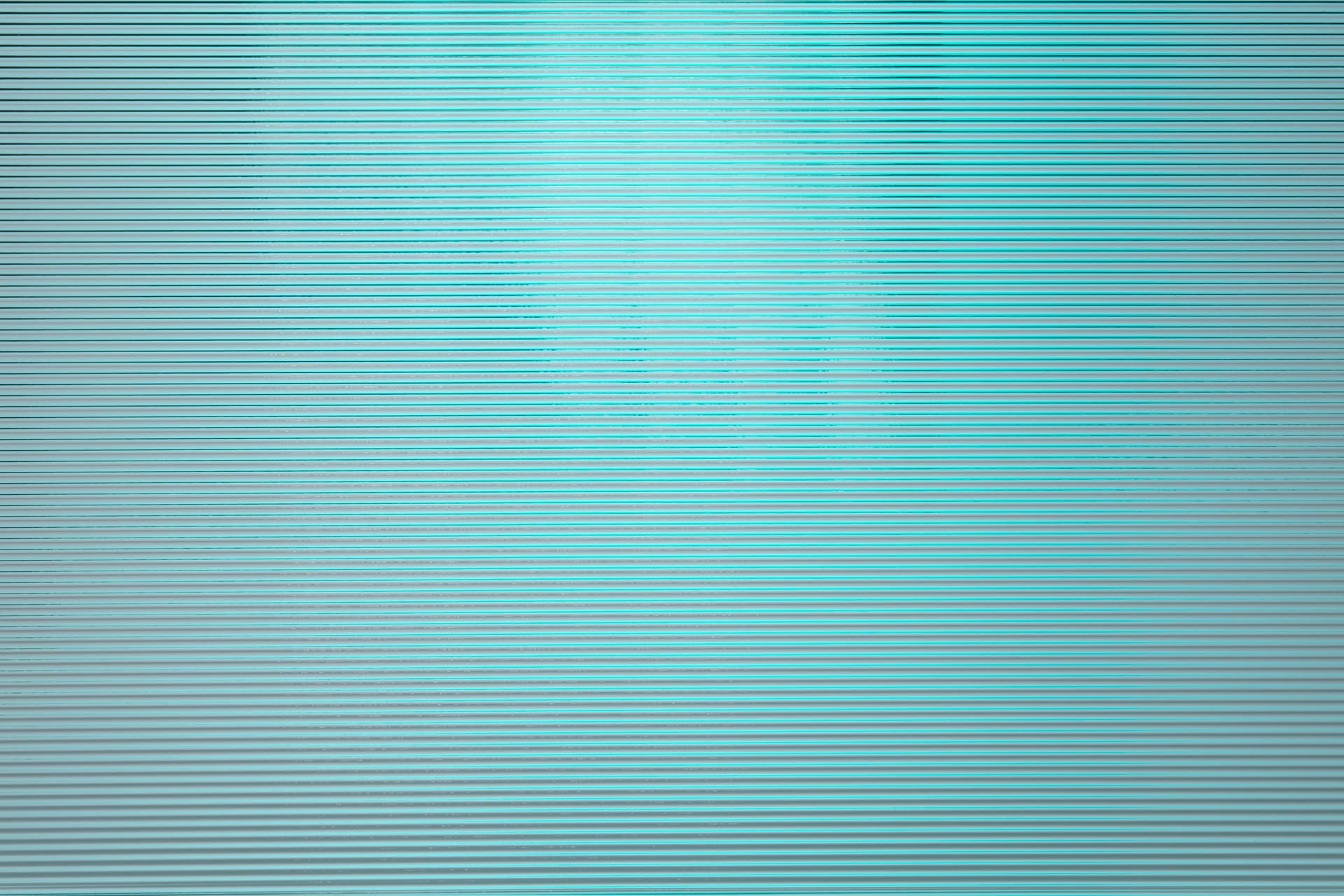
Lines on Screen
- Thin vertical lines — T-Con board or panel ribbon cable. On some Sony XBR/XR models, this is caused by oxidation of the ribbon cable contacts
- Horizontal bands — often a Main Board issue or panel damage
- Coloured patches or "clouds" on light backgrounds — backlight uniformity issue (clouding). This is a structural characteristic of Edge LED panels, particularly noticeable on budget series
Dark Patches on Screen (Dimming)
On models with Full Array Local Dimming (XR series), dark patches may indicate failure of individual backlight zones. If the dimming is static and doesn't change with content — it's a hardware issue that requires professional repair.
Sound Problems
No Sound Through HDMI ARC / eARC
HDMI ARC is one of the most problematic features on Sony TVs. Sound cuts out, delays appear, or ARC simply refuses to work.
Step-by-step diagnosis:
- Make sure the HDMI cable is connected to the correct port — HDMI 3 (ARC) on most Sony models (not HDMI 1, as on LG)
- Enable BRAVIA Sync (CEC): Settings → Watching TV → External Inputs → BRAVIA Sync → On
- Check audio output settings: Settings → Display & Sound → Audio Output → Speakers → Audio System
- Set the output format: Settings → Display & Sound → Audio Output → Digital Audio Out → PCM (if your soundbar doesn't support Dolby Digital)
- Disable eARC if your soundbar doesn't support it: Settings → Display & Sound → Audio Output → eARC Mode → Off
- Try a different HDMI cable — ARC requires HDMI 2.0 or above, eARC requires an Ultra High Speed HDMI cable
Audio Out of Sync with Picture
- Enable A/V Sync: Settings → Display & Sound → Audio Output → A/V Sync → On
- If the delay occurs through external speakers — adjust the audio delay (lip sync) setting on your soundbar
- Try switching the format from Auto to PCM in the digital audio output settings
Built-in Speakers: Quiet or Distorted Sound
- Check the sound mode: Settings → Sound → Sound Mode. "Standard" usually works best
- Disable Dolby Atmos for the built-in speakers — they physically cannot reproduce spatial audio, and the processing can cause distortion
- Make sure the output is set to TV Speakers, not Bluetooth or Audio System
Sony TV Turns On and Off by Itself
An annoying problem that's fairly common with Sony BRAVIA models.
Software causes:
- Disable the auto-off timer: Settings → Device Preferences → Timers → Sleep Timer → Off
- Disable HDMI-CEC (BRAVIA Sync) — another device may be sending a shutdown command
- Check whether a firmware update is scheduled to install automatically
Hardware causes:
- Faulty power button on the TV itself (sticking)
- Power supply capacitor issue — they swell over time
- Overheating — the TV enters protection mode. Check that the ventilation isn't blocked
When to Call a Professional
Self-diagnosis helps resolve software issues, but hardware faults require a specialist:
- Indicator blinking a specific number of times — error codes point to a specific component
- Black screen with sound — LED backlight or LED driver replacement
- Lines on screen — T-Con board, ribbon cable or panel
- No power — power supply unit (capacitors, transistors)
- Constant rebooting — Main Board or power supply
- HDMI ARC not working after all settings checked — possible HDMI chip failure
At SATER service centre in Riga, we repair Sony TVs of all generations — from the classic LCD and LED KDL and KD series to the latest BRAVIA XR with Mini LED and OLED panels. Each type of fault is diagnosed by a dedicated TV specialist. Over 30 years of repair experience.
Repair path
Where to go next if this fault is repairable
Related SATER service, brand and fault pages help you understand the repair route and get the device into the right diagnostic flow.
Frequently Asked Questions
Need professional repair?
SATER service centre — Silmaču iela 6, Riga
SATER service — home electronics & appliance repair in Riga