Ecovacs Deebot Error Codes: What They Mean and How to Fix Them
Ecovacs Deebot error codes E1-E9 explained. OZMO, TrueMapping, YIKO, Wi-Fi issues. When to seek professional repair in Riga.
Contents
Ecovacs Deebot is one of the most popular robot vacuum lines in Latvia. Models such as the Deebot X2 Omni, T20 Omni, T10 Turbo, N10 Plus, N8 Pro, and the Deebot Ozmo series have earned their reputation for reliability. But even well-built appliances occasionally throw errors. The robot stops, beeps, and a code like E1, E2, or E5 appears on the display or in the ECOVACS HOME app.
In this guide, we'll go through all the main Ecovacs Deebot error codes, explain what lies behind each one, and help you understand what you can try at home versus when it's time to visit a service centre.
Error Codes E1-E9: Full Reference
E1 — Driving Wheel Issue
The robot cannot move. One or both driving wheels are blocked or not spinning.
What to check at home:
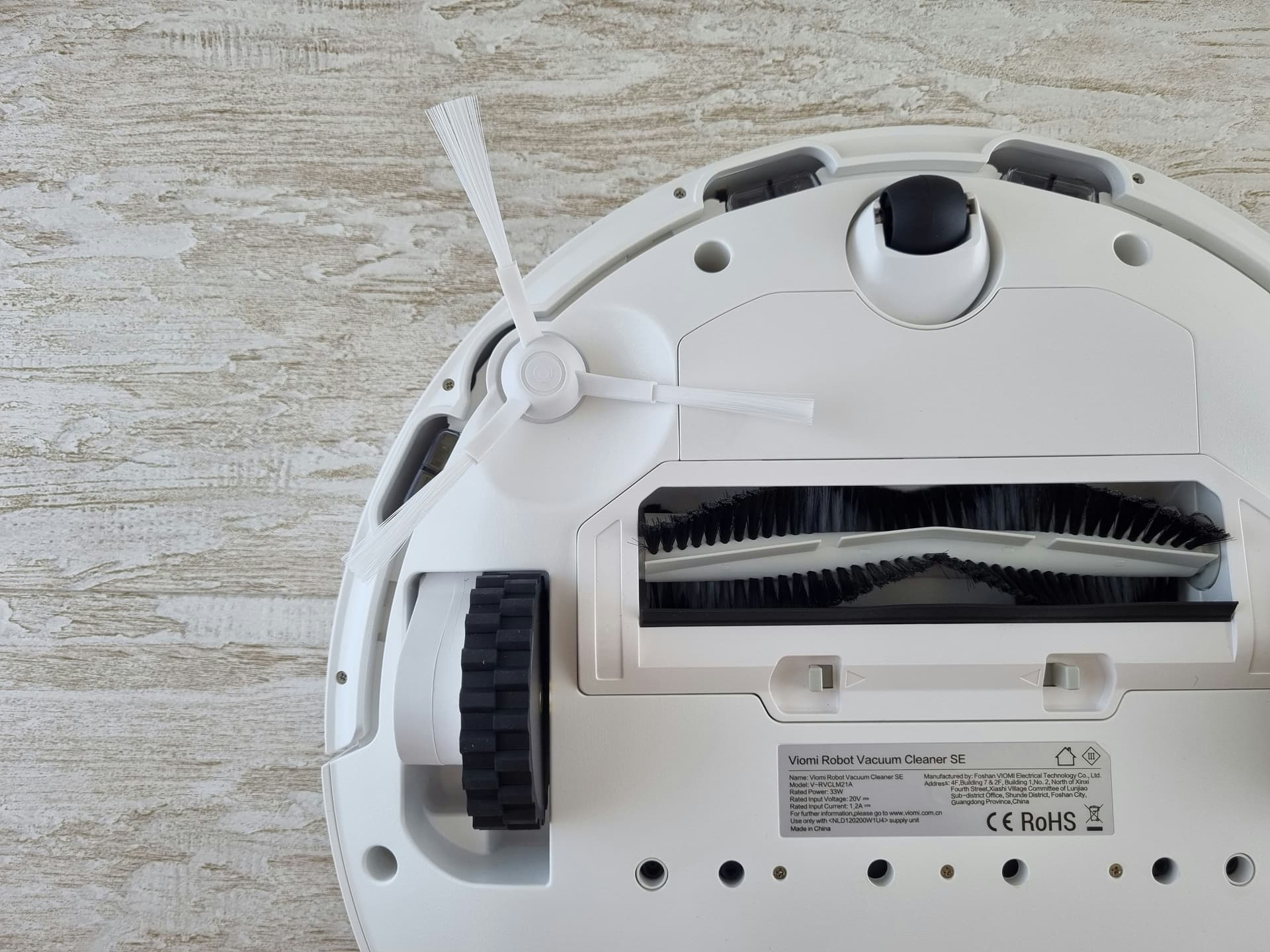
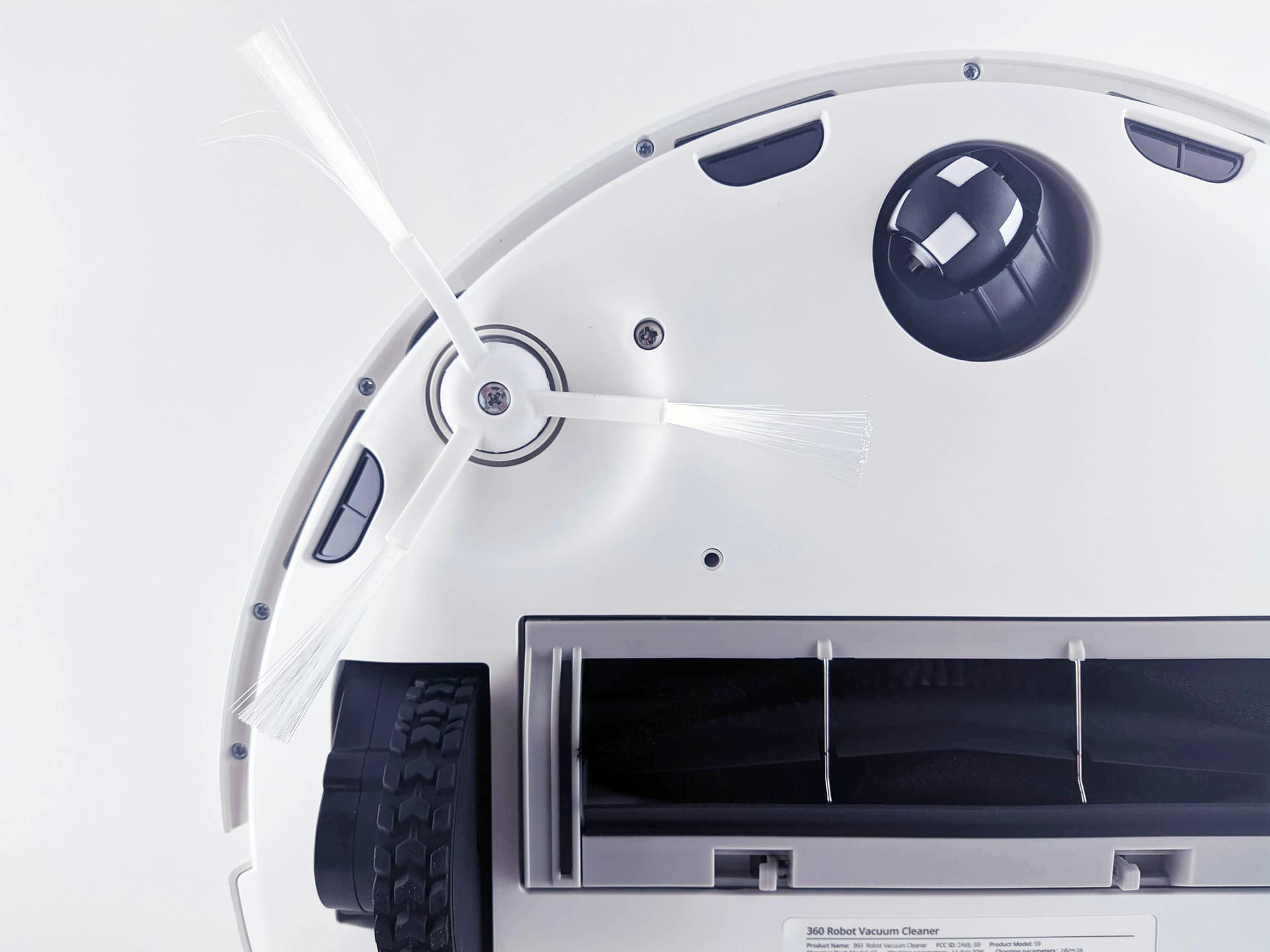
- Turn the robot over and inspect both wheels. Remove hair, threads, and pet fur — anything that may have wound around the axles.
- Press the wheels by hand — they should spring freely and return to their original position. If a wheel is stuck, try gently rocking it back and forth.
- Check for small objects (LEGO pieces, buttons, small toys) lodged in the mechanism.
- Make sure the robot isn't stuck on a high threshold or the edge of a rug.
When to seek repair: If the wheel still doesn't spin freely after cleaning, you hear crunching or grinding, or the wheel has noticeable play — the wheel's geared motor is likely worn. This is a common fault that we at SATER repair regularly.
E2 — Side Brush Issue
One or both side brushes won't rotate, or rotate with difficulty.
What to check at home:
- Remove the side brushes (usually held by clips or screws). Clear wound-up hair and threads from the shaft.
- Inspect the brushes themselves — are the arms bent? Are there cracks in the mounting hub?
- Wipe the brush socket with a damp cloth — dust and grime create additional resistance.
- Refit the brush and ensure it rotates freely by hand.
When to seek repair: If the brush doesn't spin even without load, or you can hear an unusual motor sound, the side brush motor has most likely failed. Replacement doesn't take long.
E3 — Suction Fan Issue
The main fan (suction motor) is running incorrectly or won't start.
What to check at home:
- Remove the dustbin and check for large debris stuck in the suction channel.
- Clean the HEPA filter — a clogged filter places excessive load on the motor, and the robot may trigger an overheat protection error.
- Check the main (centre) brush — tangled hair creates additional resistance.
When to seek repair: If the error persists after cleaning, the motor hums unusually or won't start at all — the motor may be worn. We test it on a bench and replace it if necessary.
E4 — Dustbin Issue
The robot cannot detect the dustbin, or the waste container is seated incorrectly.
What to check at home:
- Remove the dustbin, clean it, and reinsert it until you hear a distinct click.
- Wipe the contacts on the dustbin and inside the robot's bay with a dry cloth.
- Check the sealing gaskets — if they're deformed, the container may not lock in place.
- On models with automatic dust extraction (Deebot X2 Omni, T20 Omni), check whether the extraction channel is blocked.
When to seek repair: If the container is seated correctly but the error won't clear, the dustbin detection sensor may be faulty. This is an electronic issue that requires diagnosis.
E5 — Water Tank Issue
Relevant for models with mopping capability (OZMO, OZMO Turbo). The robot cannot detect the water tank or cannot deliver water to the mopping pad.
What to check at home:
- Remove the water tank and reseat it, making sure it clicks into place.
- Check whether the water delivery opening is clogged.
- Ensure the tank has enough water — some models trigger E5 when the tank is empty.
- On models with vibrating mop pads (OZMO Turbo), check that the mopping platform is mounted correctly.
When to seek repair: If the error consistently appears with a full tank and correct installation, the water delivery pump or its controller may be faulty. These are internal components that cannot be replaced at home.
E6 — Anti-Drop Sensor Issue
The robot believes it's on the edge of a staircase or drop-off and refuses to move.
What to check at home:
- Wipe the anti-drop sensors (located on the underside of the robot, usually 4-6 units) with a soft dry cloth. Dust and grime on the sensors are the most common cause of false triggers.
- Check whether the robot is operating on a very dark or very glossy floor — dark surfaces are sometimes misread by sensors as a drop-off.
When to seek repair: If cleaning doesn't help, one or more infrared sensors may be faulty.
E7 — Bumper Issue
The robot's bumper is not returning to its resting position after a collision.
What to check at home:
- Gently press the bumper from different sides — it should spring freely. If it sticks, inspect the gap between the bumper and the body.
- Remove any debris or dust that may have entered the gap.
When to seek repair: If the bumper is physically damaged (cracked, deformed) or the internal collision sensor is faulty.
E8 — Navigation / LiDAR Issue
The robot cannot orient itself in space. Relevant for models with laser navigation (LDS/LiDAR) and cameras.
What to check at home:
- Wipe the laser turret (the round protrusion on top of the robot) with a soft cloth. Dust on the LiDAR lens is a frequent cause of this error.
- On models with cameras (TrueDetect), wipe the camera lenses.
- Make sure the laser turret spins freely — try gently rotating it by hand.
When to seek repair: If the LiDAR turret won't rotate, you hear grinding, or the error persists after cleaning, the LiDAR motor is likely worn or the sensor itself is damaged.
E9 — System Error
A general error that can indicate various problems, from a software glitch to a hardware fault.
What to check at home:
- Restart the robot: switch off, wait 30 seconds, switch back on.
- Check whether the latest firmware version is installed via the ECOVACS HOME app.
- Try resetting network settings (not a full factory reset!).
When to seek repair: If a restart and firmware update don't help and E9 keeps recurring, professional diagnosis is needed. The cause may be a main board fault.
OZMO Mopping System Issues
Ecovacs OZMO is the proprietary mopping technology available on the Deebot T20, T10, X2, N8 Pro, N10, and OZMO series models. Typical problems:
The robot isn't delivering water to the mop pad. Check the water tank and make sure the plug is in place and water isn't leaking. On models with an electronic pump (OZMO Turbo, OZMO Pro), the cause may be a blockage in the water delivery system or a pump fault.
The mop pad doesn't vibrate (vibrating mop models). The Deebot T20 Omni and X2 Omni feature vibrating mopping platforms running at up to 4,000 passes per minute. If the vibration has stopped, check whether the platform is correctly installed. When installation is correct, the problem is usually the vibration motor.
Streaks and marks after mopping. Replace the mop pad — they wear out over time. Use only clean water, without cleaning agents (unless your model's manual says otherwise). Check whether the water delivery openings are clogged.
TrueMapping and TrueDetect Issues
TrueMapping is Ecovacs' laser navigation based on LiDAR (dToF). It's used in the higher-end models (T20, X2, T10). TrueDetect is the obstacle recognition system using 3D cameras.
The robot builds the map incorrectly. The room map "drifts," rooms overlap one another. Delete the current map in the app and run a fresh mapping cycle. Make sure the laser turret is clean and spins freely.
The robot doesn't avoid obstacles (TrueDetect). Wipe the cameras on the front of the robot. Check whether the object recognition feature is disabled in the app settings. TrueDetect needs adequate lighting — in complete darkness, the system may not work correctly.
The robot gets stuck in one spot. The laser turret may be spinning intermittently. Gently rotate it by hand — the movement should be smooth, without jerking. Grinding or sticking indicates motor wear.
YIKO Voice Assistant: Common Issues
YIKO is Ecovacs' own voice assistant, available on select Deebot models. The main complaints:
The robot doesn't respond to voice commands. Check whether the YIKO feature is enabled in the ECOVACS HOME app. Make sure the robot's microphone isn't covered or water-damaged.
YIKO responds but doesn't carry out commands. Ensure the robot is connected to Wi-Fi — YIKO requires an active connection to process commands. Check that the firmware is up to date.
YIKO only works in English/Chinese. YIKO's language support depends on the region and model. Not all models support all languages. Check available languages in the app settings.
Wi-Fi and ECOVACS HOME App Connectivity
Wi-Fi connectivity problems are one of the most frequent complaints on Ecovacs user forums. Here's what we see most often:
The robot won't connect to Wi-Fi. Make sure your router is broadcasting on 2.4 GHz — most Deebot models don't support 5 GHz. If you have a dual-band router with a shared SSID, temporarily disable the 5 GHz band during setup.
The robot loses connection after a router update or Wi-Fi password change. Remove the robot from the app and add it again. Before reconnecting, restart both the robot and the router.
The ECOVACS HOME app can't find the robot. Make sure the smartphone and the robot are on the same Wi-Fi network. Check that the app has permissions for local network access and Bluetooth (needed for initial setup). If issues recur, reinstall the app.
The robot works but shows "offline" in the app. Check Wi-Fi signal strength where the charging station is placed. If the station is far from the router, move it closer or use a Wi-Fi extender.
Ecovacs Deebot Battery Replacement
The battery is a consumable component. Lithium-ion cells in robot vacuums are rated for 400-500 charge cycles, after which capacity starts to noticeably decline.
Signs of battery wear:
- The robot runs for 15-20 minutes instead of the rated 100-180 minutes.
- The robot can't make it back to the charging dock and runs flat on the way.
- Prolonged charging — 6-8 hours instead of the usual 3-4.
- The robot won't turn on even after a long charge.
At SATER, we build and replace batteries for all Ecovacs Deebot models. We use quality Li-ion cells, and can also order original batteries. Capacity after replacement is restored to factory levels — or even exceeds them, depending on the cells chosen.
When You Definitely Need a Service Centre
Many robot errors are resolved by cleaning and rebooting. But there are situations where professional diagnosis is essential:
- The error code reappears after every clean and restart.
- The robot makes unusual sounds: grinding, knocking, squealing.
- Visible damage — cracks in the body, dents, signs of leakage.
- The battery is swollen or the robot overheats noticeably during charging.
- The robot won't turn on at all.
- The laser turret won't rotate.
- After a fall from stairs or a high threshold.
What We Do at SATER
We repair Ecovacs Deebot robot vacuums from basic dry-cleaning models to modern Omni stations with washing, drying, and AI navigation. Diagnosis checks the error code against the wheel, LiDAR, suction, water, battery, dock, and sensor systems. The full scope is described on our robot vacuum repair service in Riga page.
We repair many Ecovacs models, including Deebot X2 Omni, T20 Omni, T10 Turbo, N10 Plus, N8 Pro, OZMO series, Deebot U2, 500/502 and others where parts are available.
Our approach:
- On-the-spot diagnosis. Bring the robot in — we'll inspect it in front of you and quote the repair cost.
- Honest assessment. If repair isn't worthwhile, we'll tell you straight.
- Battery replacement — we build battery packs from quality Li-ion cells, or order originals.
- 3-month warranty on all types of repair.
- No appointment needed. Bring it in Mon-Sat, 09:00-16:00.
If the error returns after cleaning and reset, the robot should be checked in service.
Repair path
Where to go next if this fault is repairable
Related SATER service, brand and fault pages help you understand the repair route and get the device into the right diagnostic flow.
Frequently Asked Questions
Need professional repair?
SATER service centre — Silmaču iela 6, Riga
SATER service — home electronics & appliance repair in Riga