Roborock Error Codes: Guide for Popular Models
Common Roborock robot vacuum error codes explained with step-by-step fixes. Errors 1-28 — what they mean and how to resolve them.
Contents
Roborock is one of the most popular robot vacuum brands in Latvia. The S7, S7 MaxV, S8 Pro Ultra, Q7 Max, Q Revo and other models can be found in thousands of households. When the robot stops mid-clean and reports an error, it's not always clear whether you can sort it out yourself or whether it's time to bring it to a service centre.
In this guide, we cover every Roborock error code — from Error 1 to Error 28. For each error, we explain the cause, provide step-by-step instructions for self-repair, and tell you when professional help is needed.
Roborock Error Code Quick Reference Table
Swipe to see the full table
Error 1: Laser Distance Sensor (LDS) Jammed
The laser turret on top of the robot is Roborock's eyes. If the LDS sensor (lidar) cannot rotate freely, the robot loses its bearings and stops.
Causes:
- Dust or debris has got under the rotating lidar turret
- The robot was cleaning under low furniture and the turret caught on something
- A sticky substance has landed on the LDS protective cover
How to fix:
- Switch the robot off and turn it upside down
- Gently rotate the LDS turret by hand — it should spin freely
- Wipe the outer surface of the turret with a soft, dry cloth
- If the turret sticks — blow compressed air into the gap between the turret and the body
- Restart the robot and launch a cleaning cycle
When to call a service centre: If the turret still won't rotate after cleaning, the bearing may be worn or the LDS drive mechanism damaged. Replacing the lidar module is a routine job for our engineers.
Error 2: Bumper Stuck
The Roborock front bumper is a spring-loaded element with a collision sensor. If the bumper is jammed in the pressed or released position, the robot thinks it is constantly hitting something.
How to fix:
- Press the bumper several times along its entire length — it should spring back each time
- Check the gap between the bumper and the body: look for trapped debris, thread or hair
- Wipe the gap with a thin brush or cotton bud
- Restart the robot
When to call a service centre: If the bumper does not spring back or you can see physical damage, the bumper or spring mechanism needs replacing.
Error 3: Wheel Suspended in the Air
The robot has detected that one or both drive wheels have lost contact with the floor. This often happens when the robot drives onto a rug edge, gets stuck on a threshold, or ends up on a slippery surface.
How to fix:
- Move the robot to a flat surface
- Check that the wheels drop and rise freely
- Make sure there is no hair or thread tangled in the wheel wells
- Press the Home button — the robot will return to its dock
Error 4: Cliff Sensor (Anti-Drop)
Four infrared sensors on the underside of the robot prevent the Roborock from falling down stairs or off a balcony. If the sensors are dirty, the robot "thinks" it is on the edge of a drop and refuses to move.
How to fix:
- Turn the robot upside down
- Locate the 4 cliff sensor windows (at the corners of the underside)
- Wipe them with a soft, dry cloth
- Make sure the robot is on an opaque surface — dark glossy floors or glass scales can trigger false readings
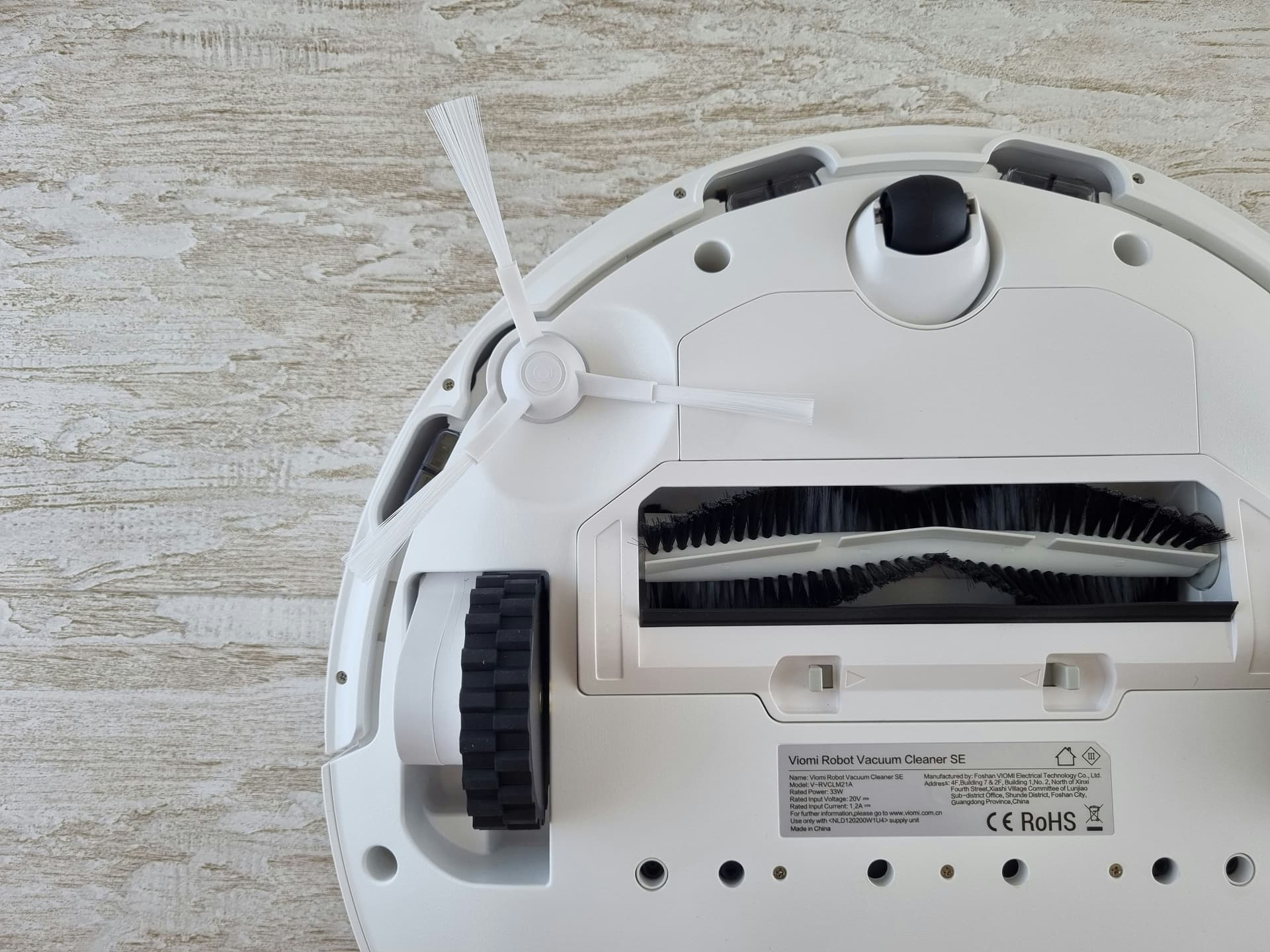
Error 5: Main Brush Jammed
The main roller brush is the hardest-working component. Long hair, thread, cables, small toys — all of these block rotation.
How to fix:
- Turn the robot over and open the brush compartment cover
- Remove the main brush by pulling the retaining clips
- Cut away tangled hair and thread with scissors — pay special attention to the ends where the brush sits in its bearings
- Check that the brush bearings spin freely
- Refit the brush and close the cover
Tip: Clean the main brush every 1–2 weeks — this prolongs the brush motor's life and prevents Error 5.
Error 6: Side Brush Jammed
The small three-blade side brush sweeps debris from corners towards the main brush. If it has wound up hair or thread — Error 6 appears.
How to fix:
- Unscrew the side brush (usually held by a single screw)
- Remove tangled hair and thread
- Check that the brush shaft is not bent
- Refit and tighten the screw
Error 7: Main Wheels Jammed
The drive wheels are clogged with hair, thread or other debris wound round the axle.
How to fix:
- Turn the robot upside down
- Pull visible debris from the wheel wells with tweezers
- Check that each wheel spins freely
- If a wheel sticks — carefully cut the tangle away with scissors
Error 8: Robot Trapped
The robot has determined that it cannot move in any direction. This frequently happens under furniture with low clearance, in areas with lots of cables, or on high thresholds.
How to fix:
- Carry the robot to an open, clear area
- Press the start button
- To prevent a repeat — set up virtual walls or no-go zones in the Roborock app
Error 9: Dustbin Not Fitted
The robot cannot detect the dustbin. The container sensor is not engaging.
How to fix:
- Remove the dustbin and reinsert it until it clicks
- Make sure the container is clean and the latches are not broken
- Check that the contacts on the container and inside the robot body are clean
Error 10: Filter Clogged
The HEPA filter in the dustbin is blocked with dust and no longer allows sufficient airflow. The motor overheats and the robot stops.
How to fix:
- Remove the dustbin
- Take out the HEPA filter
- Rinse the filter under running water (no detergent)
- Allow the filter to dry completely (at least 24 hours)
- Refit
Important: The HEPA filter should be replaced every 3–6 months. Rinsing extends its life but does not fully restore it.
Error 11: Fan Malfunction
The suction fan is not reaching operating speed. The cause may be a blockage, a large piece of debris in the turbine, or motor wear.
How to fix:
- Switch the robot off
- Remove the dustbin and filter
- Look into the fan shaft — check for visible debris
- Restart the robot
When to call a service centre: If the error recurs after cleaning, the fan bearing is likely worn or there is a problem with the motor control electronics. At SATER, we carry out fan replacements on all Roborock models.
Error 12: Low Battery
The robot has detected that the battery has discharged to a critically low level and cannot continue cleaning.
How to fix:
- Place the robot on its charging dock
- Make sure the contacts on the underside of the robot and on the dock are clean
- Wait for a full charge (2–3 hours)
When to call a service centre: If the battery no longer holds its charge (the robot runs for less than 30 minutes from a full charge), the battery needs replacing — we can fit a new battery pack.
Error 13: Charging Error
The robot is on the dock but charging is not happening. There can be several causes — from dirty contacts to a faulty charging station.
How to fix:
- Wipe the contact pads on the underside of the robot with a damp cloth
- Wipe the metal strips on the charging dock
- Make sure the charging station is plugged in and the indicator light is on
- Place the robot on the dock again — ensure it sits squarely in the centre
When to call a service centre: If charging still does not start after cleaning the contacts, the charge management board in the robot or the charging station itself may be faulty.
Error 14: LDS Sensor Failure
Unlike Error 1 (mechanical blockage), Error 14 points to an electronic fault in the laser distance sensor. The sensor is not returning data even though the turret rotates freely.
How to fix:
- Restart the robot (hold the power button for 10 seconds)
- Update the firmware via the Roborock app
- Try starting a clean in a dark room — bright direct sunlight can interfere with the lidar
When to call a service centre: If Error 14 keeps appearing, the LDS module is faulty. This is an electronic repair that requires specialist equipment and parts.
Error 15: Internal Error
A general error in the robot's internal systems. The specific cause is not disclosed.
How to fix:
- Restart the robot (hold the power button for 10 seconds)
- Update the firmware via the app
- If the error appears after an update — try resetting the robot to factory settings
When to call a service centre: If restarts and updates do not help, the electronics need diagnosing. Error 15 may indicate a motherboard problem.
Error 17: Side Brush Motor
The side brush motor is jammed or has burnt out. The cause is often mechanical: tangled hair creates excessive load on the motor.
How to fix:
- Remove the side brush and clean the shaft thoroughly
- Check that the shaft rotates freely, without sticking
- Refit the brush and restart the robot
When to call a service centre: If the shaft is clean but the motor does not turn — the motor has burnt out and needs replacing.
Error 18: Suction Fan Malfunction
Similar to Error 11, but indicates a more serious fan problem — a motor or control board fault.
How to fix:
- Follow the same steps as for Error 11
- Restart the robot
- Update the firmware
When to call a service centre: If the error recurs, diagnostics and most likely a fan module replacement are needed. This is one of the most common reasons customers visit our service centre.
Error 21: Vertical Bumper Jammed
On certain models (S7 MaxV, S8 Pro Ultra) there is a vertical bumper in the laser turret area. If it gets stuck, the robot signals Error 21.
How to fix:
- Check whether any object is lodged near the laser turret
- Gently press the top panel — it should spring back
- Wipe the area around the turret clear of dust and debris
Error 22: Recharge Sensor (Dock Sensor)
The robot cannot detect its charging station. The IR receiver on the robot or the IR emitter on the dock is dirty or faulty.
How to fix:
- Wipe the front panel of the charging station with a soft cloth
- Wipe the IR window on the front of the robot (the dark strip)
- Ensure there are no obstructions in front of the charging station (at least 1 m clear in front and 0.5 m on each side)
- Check the dock is not in direct sunlight — the IR signal can be swamped
Error 24: No-Go Zone Error
The robot cannot plot a route because of a conflict with no-go zones set in the app. This is a software error.
How to fix:
- Open the Roborock / Xiaomi Home app
- Check the map — are the no-go zones blocking access to rooms the robot needs to reach?
- Delete unnecessary no-go zones or adjust their boundaries
- Restart the clean
Error 27: VibraRise — Mopping Module
The mopping module with VibraRise (vibratory mopping with automatic lift on carpets) is not working or is jammed. Found on the S7, S7 MaxV, S8 Pro Ultra, and Q Revo.
How to fix:
- Remove the mopping module from the robot
- Check that the microfibre pad is properly attached and has not bunched up
- Make sure the VibraRise lift mechanism is not jammed by a foreign object
- Refit the module until it clicks
- Restart the robot
When to call a service centre: If the lift mechanism does not work, the VibraRise actuator may be faulty. This is a combined mechanical–electronic repair.
Error 28: Carpet Detection Error
The robot cannot correctly identify carpet. The carpet sensor on the underside is dirty or faulty.
How to fix:
- Turn the robot upside down
- Locate the ultrasonic carpet sensor (usually next to the main brush)
- Wipe it with a soft, dry cloth
- Restart the robot
When to call a service centre: If the error persists after cleaning, the sensor needs replacing.
How to Restart a Roborock
For most errors, the first step is a restart. Here is how:
Soft restart:
- Press and hold the power button for 5 seconds until the robot switches off
- Wait 10 seconds
- Press the power button to switch on
Hard reset:
- Press and hold the power button and the Home button simultaneously for 10 seconds
- The robot will announce a voice message confirming the reset
- Set up the robot again via the app
Important: A hard reset deletes all saved maps and settings. Use it only if a soft restart did not help.
Preventive Maintenance: How to Avoid Roborock Errors
Regular maintenance is the best defence against errors:
- Every week: Clean the main and side brushes of hair
- Every 2 weeks: Rinse the filter, clean the cliff sensors
- Monthly: Check the wheels, wipe the charging contacts
- Every 3–6 months: Replace the HEPA filter and microfibre pads
- Every 1–2 years: Replace the battery (if run time has dropped)
When to Contact SATER Service Centre
Get in touch if:
- An error keeps coming back after all the steps described above
- The robot will not switch on at all
- You hear an unusual noise during operation (grinding, knocking, whistling)
- The battery no longer holds its charge
- The robot has stopped navigating properly (going in circles or moving randomly)
- The VibraRise module or suction fan is faulty
We repair Roborock robot vacuums from every series: S5, S6, S7, S8, Q5, Q7, Q Revo, and Xiaomi-branded models on the same platform. Diagnostics focus on the error source first: LiDAR, wheel motors, battery pack, dock, water system, sensors, or the main board. Full details of the service are on our robot vacuum repair in Riga page.
Repair path
Where to go next if this fault is repairable
Related SATER service, brand and fault pages help you understand the repair route and get the device into the right diagnostic flow.
Frequently Asked Questions
Need professional repair?
SATER service centre — Silmaču iela 6, Riga
SATER service — home electronics & appliance repair in Riga