Roomba Won't Charge, Spins in Circles, Error Lights — iRobot Troubleshooting Guide
Common iRobot Roomba problems explained: won't charge, spinning in circles, error codes 1-10. Step-by-step fixes and when to call a repair service.
Contents
The iRobot Roomba is one of the most popular robot vacuums in Latvia. Models from the 600, 700, 800, 900, e, i, and j series serve reliably for years, but over time they start acting up: refusing to charge, spinning aimlessly in circles, flashing red, and emitting alarming beeps.
Roomba faults often look similar at first: the robot stops, beeps, or returns to the dock unfinished. In this guide, we'll walk through the most common problems, explain the error codes, and show what you can fix at home and when the robot needs professional diagnosis.
Roomba Won't Charge: Causes and Solutions
This is the single most common complaint from iRobot owners. The robot sits on its dock, but the indicator doesn't light up — or it lights up but the battery level never rises.
Dirty Charging Contacts
In roughly 60% of cases, the culprit is simply dirt. The metal contact plates on the underside of the robot and on the charging base accumulate dust, pet hair, and oxidation over time.
What to do:
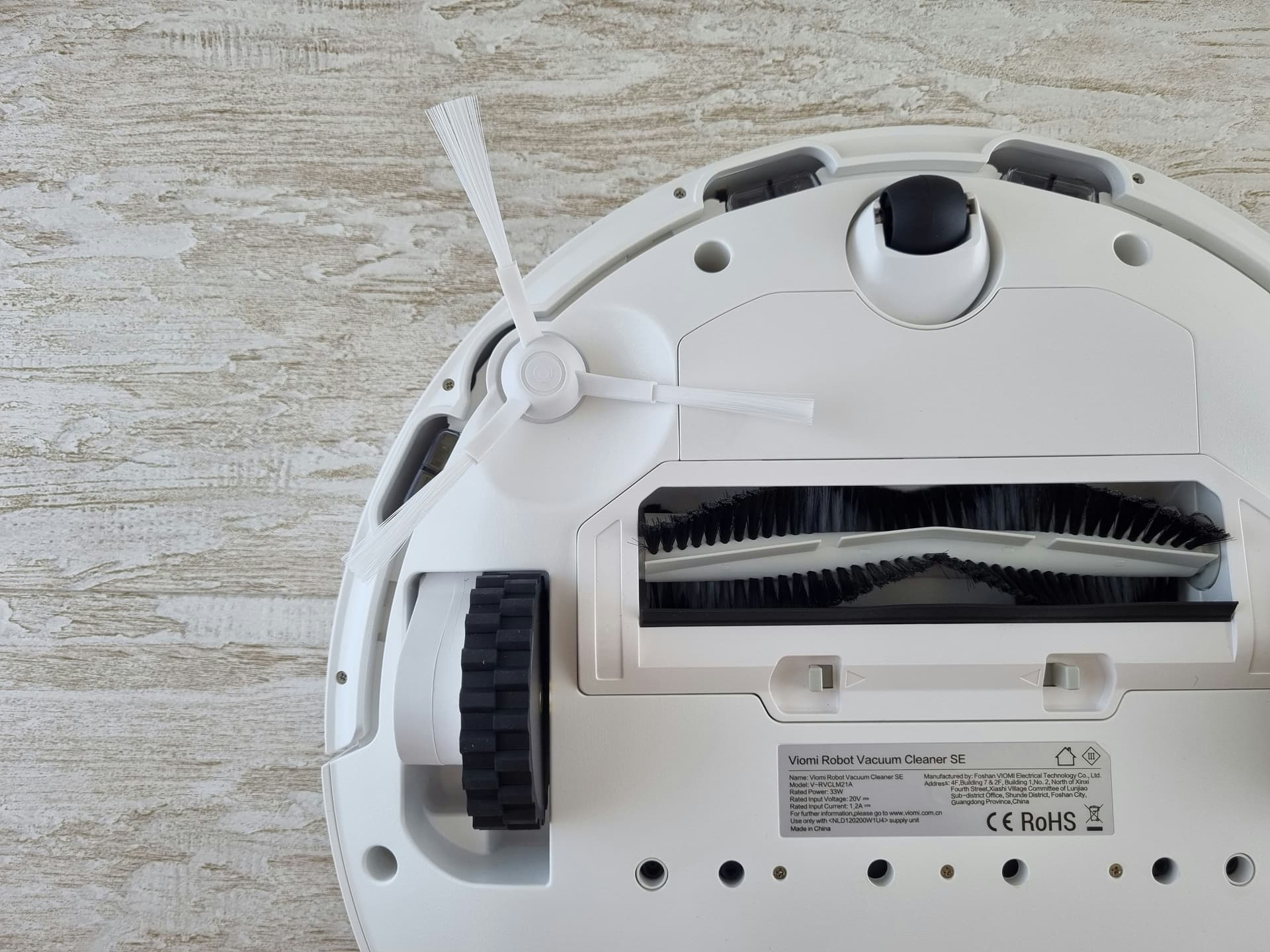
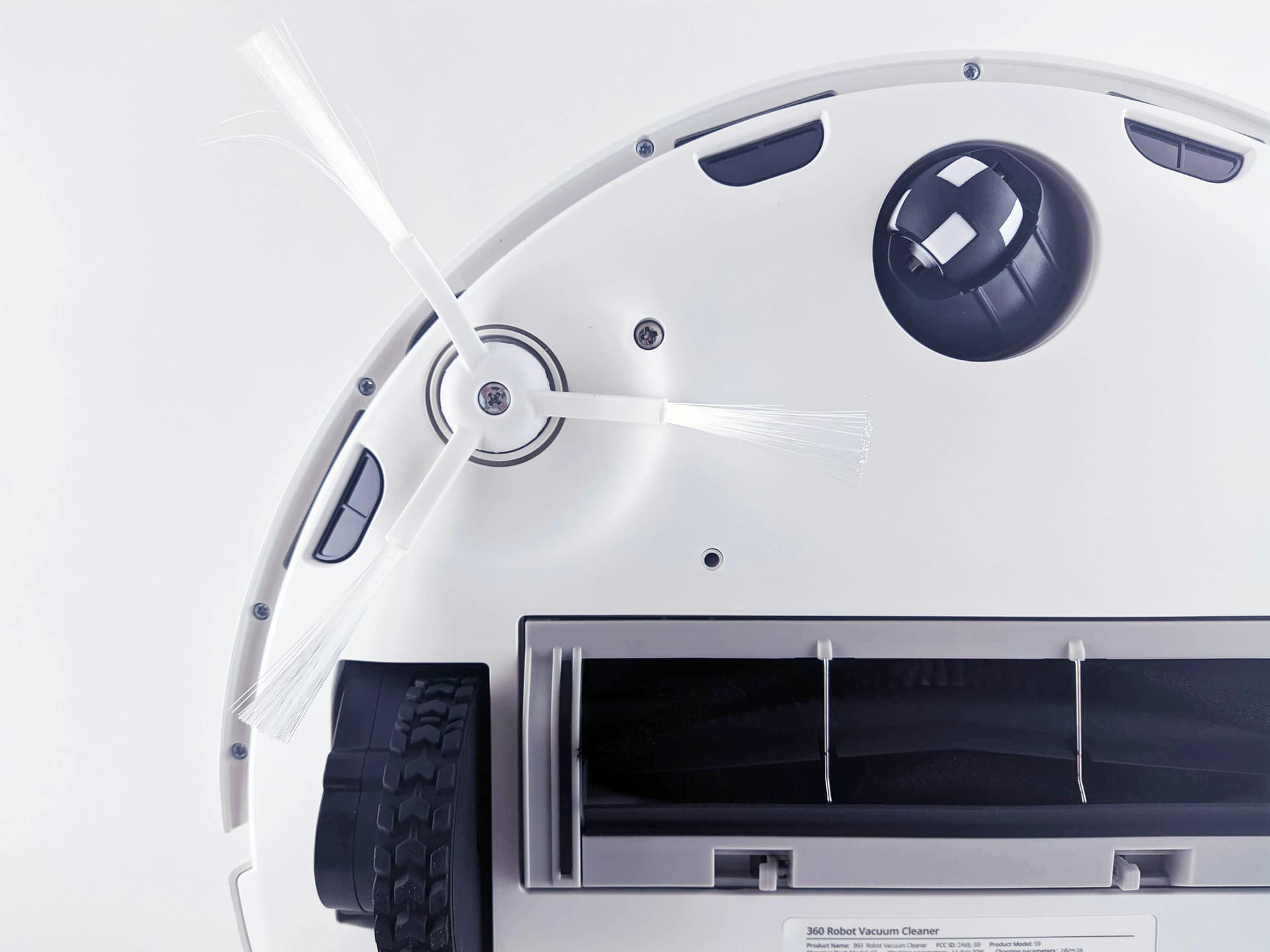
- Turn the Roomba over and locate the two metal contacts at the front of the body
- Wipe them with a dry microfibre cloth or a cotton bud lightly dampened with isopropyl alcohol
- Wipe the contacts on the charging base (two metal strips)
- Make sure the contacts aren't bent and sit flush against the surface
Clean the contacts once a month — this prevents the majority of charging issues.
Battery Has Reached End of Life
The lithium-ion (or Ni-MH in older models) battery in a Roomba is rated for 400–800 charge cycles. With daily use, that translates to roughly 1.5–3 years. After that, capacity drops: the robot runs for shorter periods, and eventually stops charging altogether.
Signs of a dying battery:
- Roomba runs for less than 30 minutes on a full charge (normal is 60–90 minutes)
- Charging takes over 3 hours but never reaches 100%
- The robot charges, starts cleaning, and returns to the dock within minutes
- The battery indicator flashes orange or red even after a full charge
At SATER, we replace batteries on all Roomba models — from the 500 series through to the j7+. We build custom battery packs using quality Li-ion cells, with a 6-month warranty.
Faulty Charging Base
If the contacts are clean and the battery is new, the problem may lie with the base itself. Check:
- Whether the indicator on the base lights up when plugged in
- Whether the power cord is damaged
- Try charging the Roomba directly by plugging the adapter into the port on the robot body (available on most models)
If the robot charges from the adapter directly but not from the base, the base needs replacing or repairing.
Roomba Spinning in Circles
The second most common symptom. The robot starts cleaning but instead of moving around the room, it goes round in circles or spins on the spot.
Stuck or Dirty Bumper
The front bumper on the Roomba houses infrared sensors that detect obstacles. If the bumper gets stuck in the pressed position due to dirt, crumbs, or trapped objects, the robot "thinks" it's constantly hitting something and tries to navigate around a non-existent obstacle.
What to do:
- Gently tap the bumper all the way around — it should spring back freely
- Look into the gap between the bumper and the body for any debris
- Wipe the IR sensor windows on the bumper with a clean, dry cloth
- Restart the robot: press and hold the Clean button for 10 seconds
Wheel Sensor Malfunction
Roomba tracks the rotation of each wheel. If a wheel is jammed, hair has wound around the axle, or the rotation sensor has failed, the robot can't travel straight and starts going in circles.
What to check:
- Pull out both wheels (they come out without tools on most models) and remove any wound-up hair and thread
- Check that the wheels spin freely and spring back when pressed in
- Ensure both wheels protrude equally from the body
Roomba Error Codes: Complete Reference Table
Roomba communicates errors through beeps and indicator flashes. The number of beeps (or the code shown in the iRobot Home app) corresponds to a specific fault.
Swipe to see the full table
Error 1: Roomba Is Stuck
One of the most common errors. Roomba has detected that one of its wheels isn't touching the floor. Usually the cause is the robot riding up onto a threshold, cable, carpet edge, or getting wedged between furniture.
Solution: Move the robot to a flat floor and press Clean. If the error repeats on a flat surface, the issue may be a faulty wheel-drop sensor.
Errors 2, 3, 10: Brush Problems
Hair, thread, and pet fur — the arch-enemies of the Roomba brush module. Users often forget to clean the brushes regularly, and as a result the brush motor becomes overloaded.
What to do:
- Turn the robot over and press the brush module release latches
- Remove both main brushes (rubber or bristle, depending on the model)
- Remove all wound-up hair — use scissors or the cleaning tool included in the box
- Clean out the brush housings
- Unscrew the side brush (one screw) and clean the axle
Clean the brushes at least once a week if you have pets at home.
Error 6: Cliff Sensors
Roomba has four infrared sensors on the underside that detect drops — stairs, steps, raised platforms. If the sensors are covered in dust, the robot "sees" a cliff that doesn't exist and refuses to move.
How to clean them:
- Turn the robot over
- Locate the four transparent windows near the front caster and along the sides
- Wipe each window with a clean, dry cloth or cotton bud
- Do not use water or cleaning agents
Important: Dark carpets and dark flooring can confuse the sensors — the robot mistakes a dark surface for a drop. In this case, try covering the sensors with white paper as a test. If the robot starts working normally, the problem isn't the sensors — it's the floor colour.
Error 8: Dustbin Clogged
Roomba believes the airflow is blocked. Causes: overflowing dustbin, clogged filter, or a blockage in the air duct.
Solution:
- Remove the dustbin and empty it
- Take out the filter and shake it out (Roomba HEPA filters must not be washed with water!)
- Look inside the dustbin compartment for any large debris
- If the filter is more than 2 months old — replace it
Error 9: Bumper Stuck
We've covered this one above. The bumper isn't returning to its resting position. Gently work the bumper along its full length — press and release at several points. If the bumper won't spring back, debris may have worked its way inside. In that case, partial disassembly is needed — best to bring it to a service centre.
Roomba Won't Return to Dock
The robot finishes cleaning but instead of returning to its charging station, it stops in the middle of the room.
Possible causes:
- The charging base is blocked by objects. iRobot recommends leaving 0.5 m of clear space on each side and 1.5 m in front of the dock
- The dock's IR beacon is dirty. Wipe the front panel of the charging station
- The robot started cleaning far from the dock. Always start cleaning from the dock — that way the robot remembers the route back
- Weak battery. If there isn't enough charge for the return journey, the robot stops mid-way
"Bin Full" Error with an Empty Bin
On models with a dustbin fill sensor (i, j, and s series), a false "bin full" message can appear.
Cause: The optical sensors inside the compartment are coated with dust.
Solution:
- Remove the dustbin
- Wipe the IR sensors inside the compartment with a damp (not wet!) cloth
- Wipe the corresponding windows on the dustbin itself
- Reinsert the bin
If the problem persists, the sensor may be faulty — bring it to a service centre.
Wi-Fi and iRobot Home App Issues
Modern Roombas (e, i, j, and s series) connect via the iRobot Home app over Wi-Fi. Common problems:
Roomba Won't Connect to Wi-Fi
- Roomba supports 2.4 GHz Wi-Fi only (not 5 GHz). If you have a dual-band router, make sure the 2.4 GHz network is active and has a separate name
- The router should be no more than 5–7 metres from the charging base for a stable signal
- Restart both the router and the Roomba (press and hold the Clean button for 10 seconds)
App Can't Find the Robot
- Make sure your phone is connected to the same 2.4 GHz network
- Turn off mobile data during setup
- Update the iRobot Home app to the latest version
- Try resetting Wi-Fi on the robot: press and hold the Home and Spot buttons simultaneously for 10 seconds (for the 900 series and newer)
Room Map Disappeared
The i and j series models build a room map using a camera or lidar. If the map has vanished:
- Don't move the charging base — it's the reference point for the map
- Run a Training Run through the app
- Make sure the room has adequate lighting (the camera won't work in total darkness)
Roomba Battery Replacement
Battery replacement is the most common Roomba repair at our service centre. Here's what you need to know:
- Roomba 500, 600, 700, 800 series: Ni-MH or Li-ion, round block format. The battery is accessed by removing the bottom cover (4 screws)
- Roomba 900, e, i series: Li-ion, integrated pack. Replacement is straightforward, but the correct connector is needed
- Roomba j, s series: Li-ion, sealed construction. We recommend professional replacement
At SATER, we don't simply fit off-the-shelf batteries from Amazon — we build custom battery packs from quality Li-ion cells. These packs often outperform the original in both capacity and lifespan.
When to Call a Professional Repair Service
Many Roomba problems can be solved at home in 10 minutes — cleaning sensors, brushes, and contacts. But there are situations where professional repair is needed:
- Resetting and cleaning haven't helped — the main board or a specific sensor may be faulty
- The robot makes unusual noises — squeaking, crackling, or grinding during operation
- The vacuum motor doesn't work — the suction motor has failed
- The battery is swollen — this is dangerous; do not use the robot! Bring it to a service centre
- Wheels won't turn even after cleaning — drive motor failure
- The body has cracked after a fall — the Roomba fell off a step or a table
We repair many iRobot Roomba models, including 500, 600, 614, 670, 675, 690, 694, 700, 800, 890, 900, 960, 980, e5, e6, i1, i3, i4, i5, i7, j7, j9 and s9 series. Workshop diagnostics confirm parts availability and repair cost after inspection. See our robot vacuum repair in Riga page for how the service works.
Repair path
Where to go next if this fault is repairable
Related SATER service, brand and fault pages help you understand the repair route and get the device into the right diagnostic flow.
Frequently Asked Questions
Need professional repair?
SATER service centre — Silmaču iela 6, Riga
SATER service — home electronics & appliance repair in Riga