Xiaomi Robot Vacuum: Common Problems and Solutions
Mi Home won't connect, LDS sensor error, weak battery? A guide to the most common Xiaomi robot vacuum problems — navigation, suction, mopping, error codes.
Contents
Xiaomi is the best-selling robot vacuum brand in Latvia. Through 1a.lv, 220.lv, Euronics and Amazon, thousands of devices reach us under the brands Xiaomi, Roborock, Dreame, Viomi and Roidmi. They all run on the shared Mi Home (Xiaomi Home) ecosystem, use similar LDS lidar-based navigation, and frequently suffer from the same issues.
At SATER service centre, we have been repairing robot vacuums since 2018 — ever since the first Xiaomi Mi Robot Vacuum units started appearing in Riga flats in large numbers. Over that time, we have repaired hundreds of devices and know exactly what breaks most often. In this article, we cover the most common Xiaomi robot vacuum problems and explain what you can fix yourself and when it is time for professional repair.
The Xiaomi Ecosystem: Who Is Who
Before diving into problems, it helps to understand which brands belong to the Xiaomi ecosystem. This often causes confusion among owners:
- Xiaomi Mi Robot Vacuum / Mop — Xiaomi's own line (developed by Roborock or Dreame)
- Roborock — originally a Xiaomi sub-brand, now an independent company. Models S5, S7, S8, Q series
- Dreame — Xiaomi ecosystem partner. Models D9, L10, L20, X series
- Viomi — another partner. Less popular in Europe
- Roidmi — cordless vacuums within the Xiaomi ecosystem
All these brands use the Mi Home (Xiaomi Home) app or their own apps (Roborock, Dreamehome), but the components and architecture overlap significantly. So do the problems.
Problem No. 1: Mi Home Won't Connect to the Robot
The most common complaint: the robot vacuum won't connect to the Mi Home app, or it loses connection after an update. This is a software issue that is often resolved without repair.
Why Mi Home Cannot Find the Robot
Typical causes:
- The robot and phone are on different Wi-Fi networks (or the robot is on 2.4 GHz while the phone is on 5 GHz)
- The Mi Home app is outdated or has the wrong region set (Mainland China instead of Europe)
- The router is blocking the connection: MAC filter is on, AP Isolation is active, or mDNS is disabled
- The robot is stuck in pairing mode after a failed firmware update
- The robot has activated a Wi-Fi module lock after several failed connection attempts
What to Try
- Make sure the phone and robot are on the same 2.4 GHz network. Xiaomi robots do not support 5 GHz Wi-Fi. If you have a dual-band router, temporarily disable 5 GHz or create a separate 2.4 GHz network
- Reset Wi-Fi on the robot. On most models, simultaneously press the "Home" and "Spot Clean" buttons for 3–5 seconds until you hear a beep
- Check the region in Mi Home. Open Profile → Settings → Region. For Latvia, select Europe or Germany. Changing the region may require re-adding the device
- Update the app to the latest version. On Android, also check permissions: location, Bluetooth, Wi-Fi
- Restart the router and make sure AP Isolation is off (it is often enabled by default on guest networks)
- Try an alternative app. For Roborock — the Roborock app; for Dreame — Dreamehome. Sometimes these work more reliably than Mi Home
If nothing helps, the Wi-Fi module inside the robot may be faulty. This is a repairable component: replacing or reflashing the module resolves the problem.
Problem No. 2: LDS Sensor (Lidar) Error
The LDS (Laser Distance Sensor) is the lidar unit on top of the robot that spins and scans the room to build a map. It is the key navigation component, and when it fails, the robot either refuses to start or drives around the room erratically.
Typical Errors
- Error 1: "Laser sensor malfunction" — the lidar is not spinning or spins intermittently
- Error 13: "Please wipe the sensor" — the sensor is dirty or blocked
- The robot fails to build a map or builds one with major errors (walls "drift", rooms are not recognised)
- The LDS turret makes noise, squeaks or spins unevenly
What to Try
- Wipe the LDS sensor with a soft, dry cloth. Dust and pet hair are the most common cause of error 13
- Check whether the lidar turret spins freely. Gently turn it with your finger — it should spin smoothly, without resistance. If you feel resistance, hair or thread is caught inside
- Restart the robot. Switch it off, wait 30 seconds, switch it back on
- Check the firmware. Sometimes the LDS error appears after an update — rolling back or re-updating can resolve the issue
If the LDS sensor is physically damaged (cracked, dropped, water-damaged), the module needs replacing. We replace LDS sensors on Xiaomi, Roborock and Dreame robots — the part is usually available, and repair takes 2–5 working days.
Problem No. 3: Battery Drains Quickly
A robot vacuum runs on a lithium-ion (Li-Ion) battery, and after 2–3 years the capacity inevitably declines. This is a normal degradation process, but it can be slowed, and the battery can be replaced.
Symptoms of Battery Degradation
- The robot runs for less than 40 minutes instead of the stated 90–150 minutes
- The robot does not make it back to the dock — it runs flat on the way
- The charge indicator shows 100%, but after 10 minutes of cleaning it is already flashing red
- The robot won't switch on or shuts down immediately after being unplugged from the charger
- The battery has swollen — the robot's casing no longer closes properly (dangerous — stop using immediately)
What to Try
- Calibrate the battery. Fully discharge the robot (run a cleaning cycle until it switches off completely), then charge to 100% without interruption. Repeat 2–3 times — this sometimes restores the indicator's accuracy
- Check the charging dock contacts. Wipe the contacts on the robot and the dock with alcohol. Oxidised contacts are a common cause of incomplete charging
- Make sure the dock is working. The indicator on the dock should be lit. If not, the problem may be with the dock's power supply, not the robot's battery
If the battery has degraded, it needs replacing. At SATER, we build custom battery packs for robot vacuums using quality Li-ion cells. Repacking with quality cells is often cheaper than an original battery and delivers equal or greater capacity. The warranty on battery replacement is 6 months.
We can also order original batteries for a specific model if the customer prefers the genuine part.
Problem No. 4: Brushes Tangling with Hair and Thread
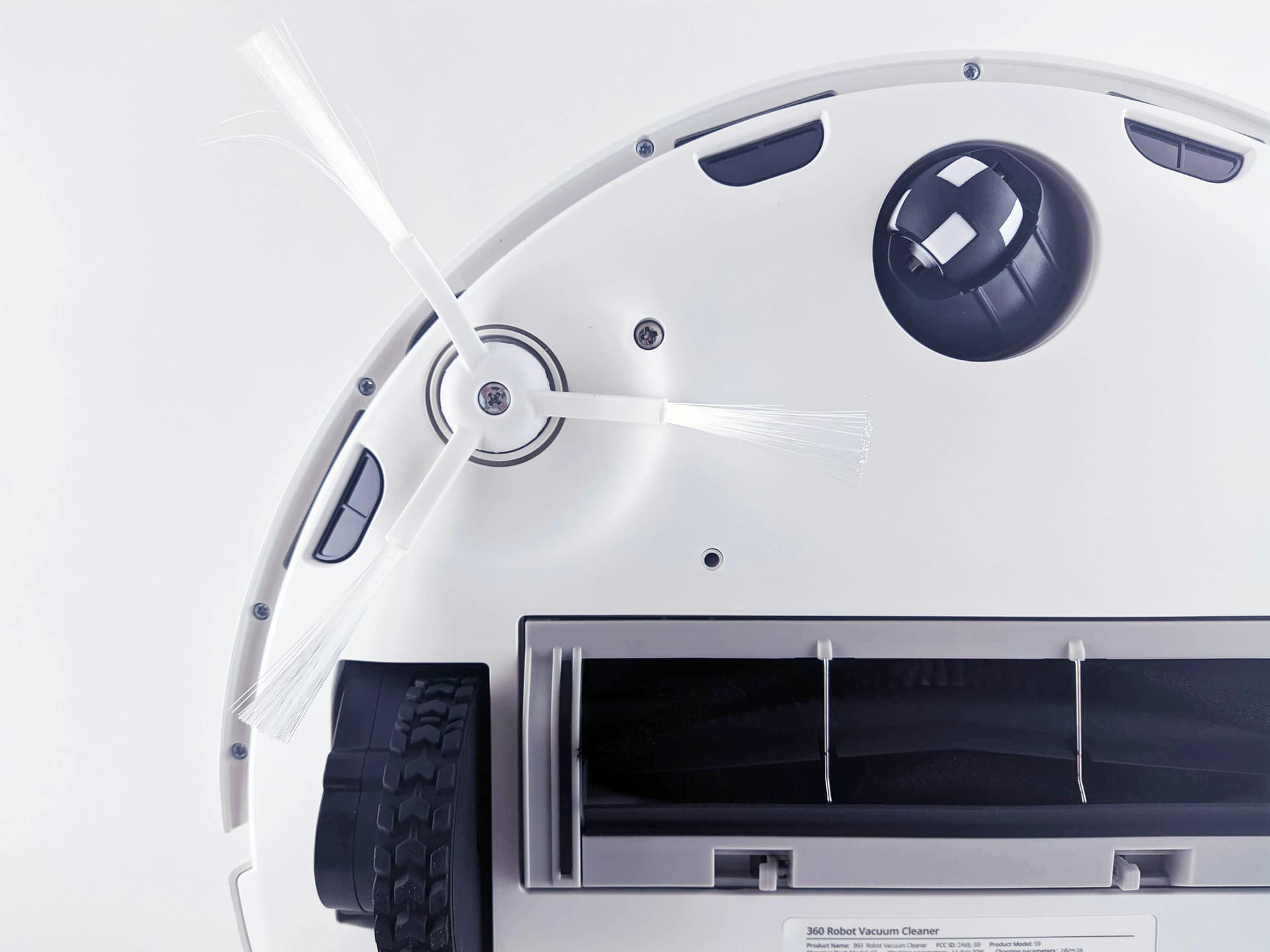
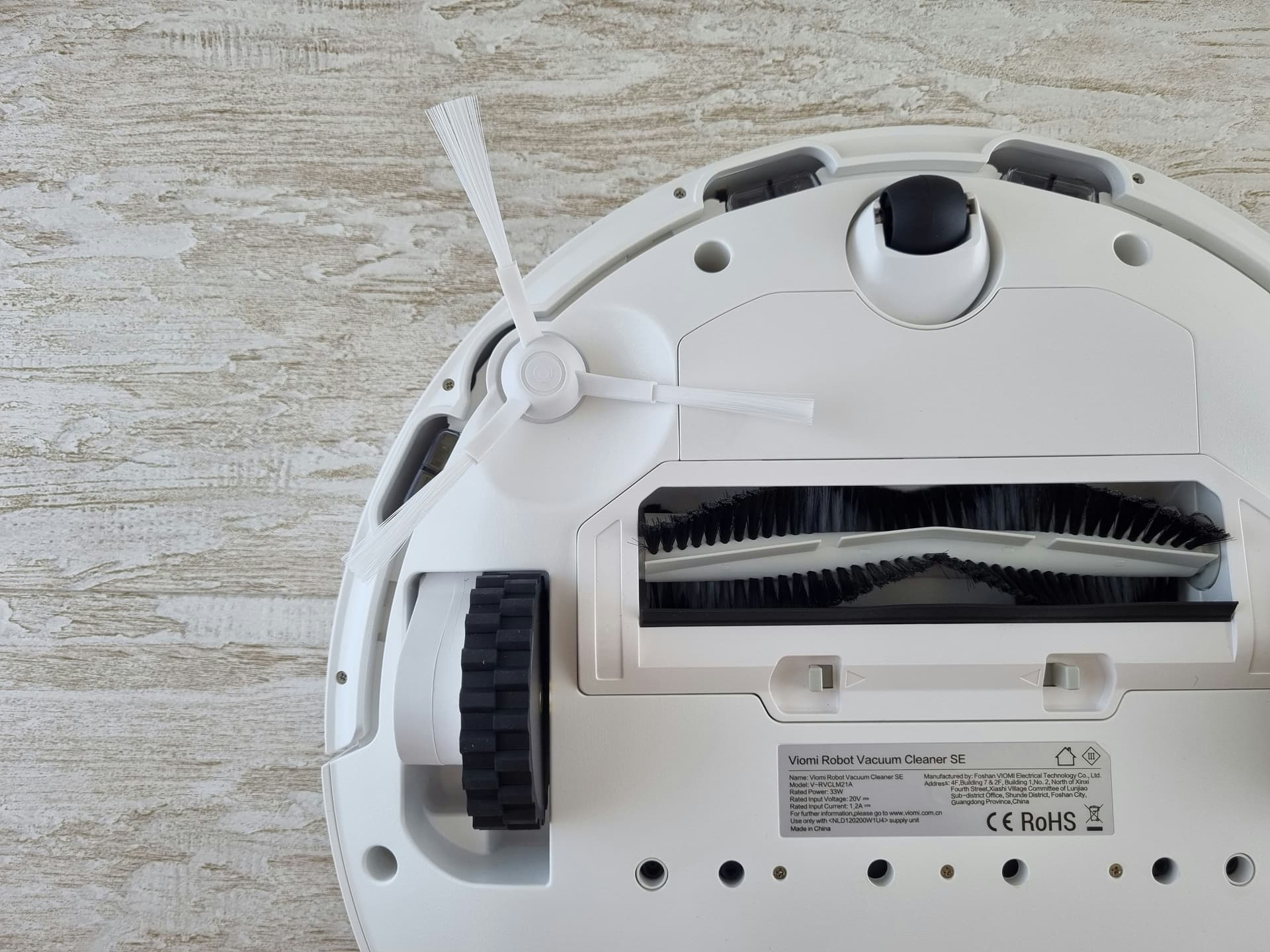
The main brush and side brushes are consumable parts, but the problem goes beyond wear. Tangled hair and pet fur work their way into the mechanism, block bearings and overload the motor.
Symptoms
- Side brush error — the brush does not spin or spins jerkily
- Noise during operation — grinding, knocking, high-pitched whining
- The robot leaves streaks of dirt — the main brush is not spinning
- Suction power has dropped — the motor is overloaded due to a blocked shaft
What to Do
- Clean the brushes regularly. Ideally after every second cleaning cycle. Use small scissors or the tool included with the robot to cut away tangled hair
- Remove the main brush and clean the shaft. Hair wraps around the shaft beneath the brush, onto the bearings — it must be removed completely
- Check the side brush. Remove it and clean the mounting point. If the mounting pin is bent, the brush needs replacing
- Replace worn brushes. The main brush lasts 6–12 months with daily use. Rubber brushes (Roborock S7/S8) last longer and tangle less hair
If the brush motor has burnt out or the bearing has failed, this is a service-centre repair. We replace side and main brush motors on all Xiaomi and Roborock models.
Problem No. 5: Navigation and Map Building
Xiaomi robots use an LDS lidar and SLAM algorithms to build a map of the room. The system usually works well, but there are situations where navigation misbehaves.
Typical Navigation Problems
- The robot does not recognise rooms — the entire flat appears as a single space
- The robot gets stuck in one spot and drives in circles
- The map has shifted — walls have moved, rooms overlap
- The robot ignores virtual walls and no-go zones
- The robot does not return to the dock — it wanders around the flat
What to Try
- Delete the map and build a new one. In Mi Home: Robot Settings → Map Management → Delete → run a full cleaning cycle to build a new map
- Ensure visibility for the lidar. Mirrors and glass surfaces are invisible to the laser — the robot may not see a wall or "crash" into a mirror
- Remove obstacles. Cables on the floor, low-hanging curtains, pet beds — all of these confuse navigation
- Check the cliff sensors. If the robot sees a drop where there is none (dark carpet, glossy floor), it avoids the "danger" and disrupts its route. Wipe the sensors on the underside
- Reposition the charging dock. It should stand on a flat surface, against a wall, with 0.5 m of clear space on each side and 1.5 m in front
If navigation continues to malfunction after all these steps, the problem may lie with the LDS sensor, cliff sensors or the main board. A diagnostic check at the service centre will reveal the exact cause.
Problem No. 6: Weak Suction
Over time, suction power decreases. Sometimes the fix is straightforward; sometimes repair is needed.
Causes of Weak Suction
- Blocked dustbin or filter. The HEPA filter should be replaced every 3–6 months. Washing (if the filter allows it) extends its life but does not replace a fresh filter
- Blocked air duct. Dust accumulates between the dustbin and the motor — it needs removing
- Worn seals on the dustbin — air leaks past the filter
- Reduced motor power — after 3–4 years of use, the motor wears
- Power settings. The robot may be in "quiet" mode — check in the app
What to Do
- Remove and clean the dustbin. Empty it, rinse the container if it is washable
- Replace the HEPA filter. A new filter costs €5–15 on AliExpress — it is a consumable, do not skimp
- Clear the air duct. Use compressed air or a thin brush
- Check the seals — the rubber gaskets on the dustbin should fit snugly
- Switch the power mode in the app to maximum or "turbo"
If suction is still poor after cleaning and replacing the filter, the main motor is likely worn. Motor replacement is a standard repair procedure.
Problem No. 7: Mopping — Leaks and Streaks
Xiaomi models with a mopping function (Roborock S5 Max, S7, S8; Dreame L10, L20; Xiaomi Mop 2) use a water tank and a cloth pad to wash floors. The system does not always work perfectly.
Typical Problems
- The robot leaves puddles — the pump delivers too much water or the valve does not close
- The cloth does not get wet — the pump is not working, or the water tank filter is blocked
- Streaks on the floor — the cloth is dirty or worn, water flow is too high
- The robot leaks when standing on the dock — the tank valve is faulty
What to Try
- Reduce water flow in the app — for laminate and parquet, use the minimum setting
- Check the rubber plug on the tank. If it is damaged, water drains out by gravity
- Replace the cloth. Microfibre pads are designed for 3–6 months of regular use
- Rinse the water tank. Remove it, rinse with warm water, check for cracks
- Do not leave the tank filled with water when the robot is sitting on the dock — this prevents leaks
If the pump or valve is faulty, this is a repair. We replace water pumps and valves on Roborock and Dreame models.
Problem No. 8: Firmware and Updates
Firmware is the robot's brain. Updates add features and fix bugs, but they occasionally introduce new problems.
Common Firmware Issues
- The robot freezes during an update — the screen/indicator flashes, the robot is unresponsive
- After an update, the map has disappeared or the robot's behaviour has changed
- The robot has reset to factory settings following an update
- Errors that appeared after an update and were not present before
What to Do
- Do not interrupt an update. If the robot is updating, wait for it to finish, even if it takes 30–40 minutes
- If the robot has frozen during an update — press and hold the power button for 15 seconds for a forced restart. If that does not help, wait for the battery to discharge, recharge, and try again
- Rolling back firmware is not possible through the app on stock devices. If the update caused problems, wait for the next version or bring the robot to a service centre for reflashing
- Save your maps. Before updating, take note of room layouts and virtual walls — you may need to recreate them manually
Reflashing via the service interface is a procedure we carry out at the service centre. It will restore the robot's operation after a failed update.
Xiaomi Error Codes: Quick Reference
Xiaomi and Roborock robots display error codes through voice messages and in the Mi Home app. Here are the most common ones:
Swipe to see the full table
If an error recurs after following the recommendations, the problem is hardware-related and requires a diagnostic check.
How to Extend the Life of Your Xiaomi Robot Vacuum
A few tips from SATER's technicians to help your robot last longer:
- Clean the brushes after every second cleaning cycle. Tangled hair is the motor's worst enemy
- Replace the HEPA filter every 3–6 months. A blocked filter overloads the motor and reduces suction
- Wipe the LDS sensor once a fortnight. A soft, dry cloth is sufficient
- Do not fill the water tank before placing the robot on the dock. Fill it immediately before mopping
- Regularly wipe the charging contacts on the robot and dock — this prevents charging problems
- Do not leave the robot discharged for long periods. Li-Ion batteries degrade when stored in a discharged state
- Clear cables, socks and small toys from the floor — the robot pulls them in and damages the mechanism
When to Bring the Robot to a Service Centre
You can resolve software glitches and carry out basic maintenance yourself. But here is when professional repair is needed:
- The robot won't switch on — you press the button, no response, no indicator lights
- It won't charge — it sits on the dock but the charge does not increase, or the robot heats up during charging
- The LDS sensor won't spin after cleaning — module replacement is needed
- The battery has swollen — stop using it immediately and bring it in for repair
- The Wi-Fi module is not working — the robot won't connect to any app after all resets
- Brush motors have burnt out — the brushes do not spin, you can smell burning
- The robot has frozen during an update and does not respond to a restart — reflashing is needed
We repair robot vacuums across the Xiaomi ecosystem, from early Mi Robot Vacuum models to modern Roborock and Dreame units. Diagnosis checks the app state, battery, LiDAR, wheel motors, suction path, dock, and sensors before we recommend repair.
Repair path
Where to go next if this fault is repairable
Related SATER service, brand and fault pages help you understand the repair route and get the device into the right diagnostic flow.
Frequently Asked Questions
Need professional repair?
SATER service centre — Silmaču iela 6, Riga
SATER service — home electronics & appliance repair in Riga