Spring Cleaning for Your Electronics — Annual Maintenance Checklist
Step-by-step spring maintenance checklist for home electronics: TVs, robot vacuums, microwaves, power tools, surge protectors, firmware updates.
Andrea Piacquadio / Pexels
Contents
Spring is the season for deep cleaning. We wash windows, shampoo carpets, and sort through wardrobes. But electronics — the television, robot vacuum, microwave, power tools — typically go untouched. That's a mistake: over winter, dust accumulates inside devices, ventilation openings become blocked, filters clog, and cables wear.
Annual electronics maintenance isn't merely about cleanliness. It extends service life, prevents breakdowns, and saves money on repairs. At the SATER service centre, we regularly see devices that failed simply because dust-blocked ventilation caused overheating. Fifteen minutes of spring maintenance could have saved the owner €50-100 in repairs.
Here's a step-by-step checklist for each category of home electronics.
1. Televisions and Monitors
Screen
- Switch off and allow to cool (10-15 minutes).
- Wipe the screen with a soft microfibre cloth. Dry for dust; slightly damp (clean water or dedicated screen cleaner) for marks.
- Never use: household glass cleaners, alcohol-based solutions, paper towels, or abrasive cloths. These damage the anti-glare coating.
Ventilation
- Inspect ventilation openings on the rear panel and underside. These frequently clog with dust and pet hair.
- Blow through with compressed air or gently vacuum with a soft brush attachment at minimum power.
- Check the gap between the wall and the TV — maintain at least 5 cm for airflow.
Cables and Connections
- Check HDMI cables — ensure they're firmly seated, not loose.
- Inspect the power cable — look for insulation damage, kinks, or melting.
- Check your surge protector — is the protection indicator lit?
Software
- Check for firmware updates — Settings → Software Update. Updates often contain bug fixes and security improvements.
- Remove unused apps — they consume memory and slow down Smart TV performance.
- Reboot the TV — unplug completely for 30 seconds, then reconnect. This clears the cache and resolves many issues.
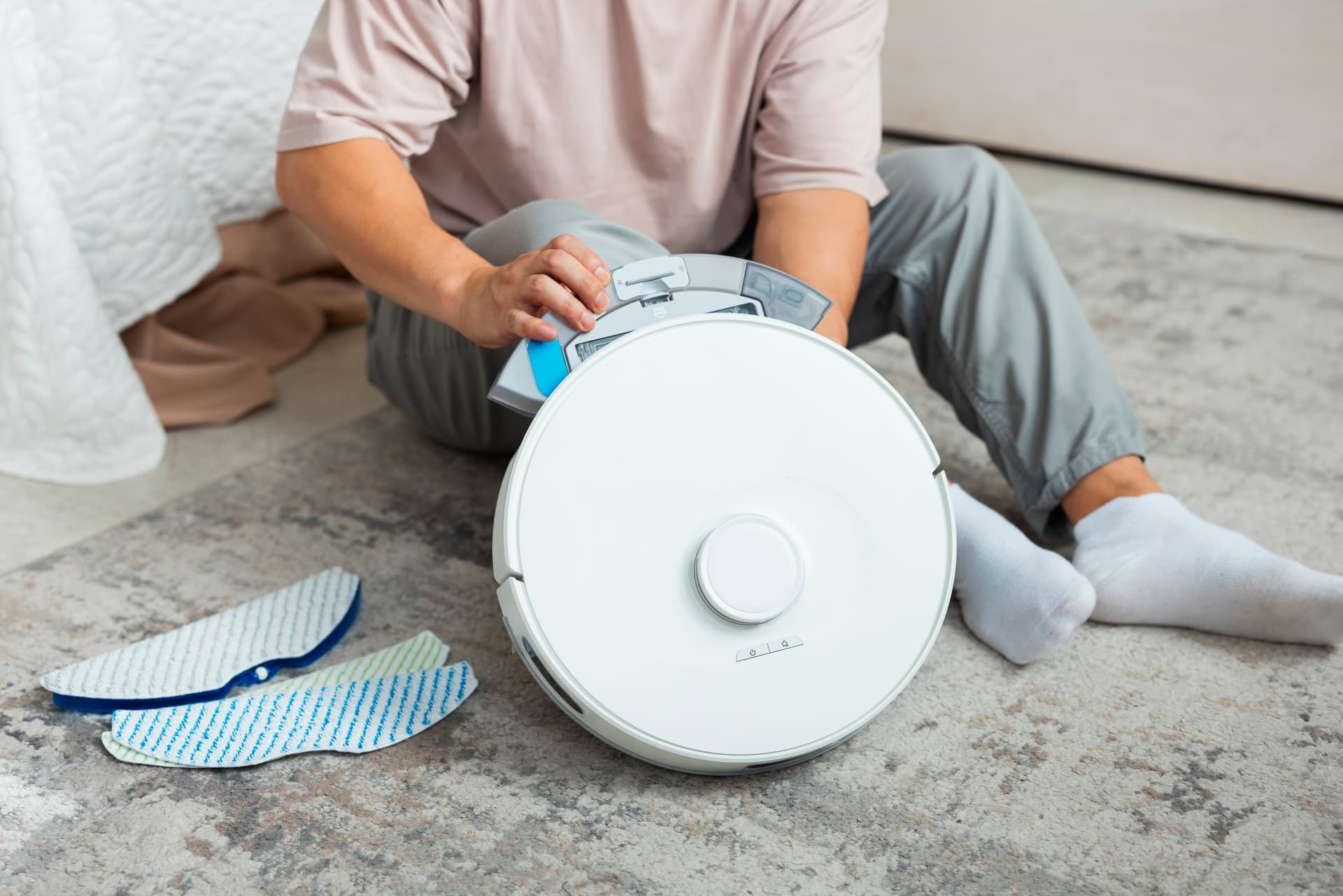
2. Robot Vacuums
Brushes
- Remove the main brush and clear tangled hair, pet fur, and threads. Use scissors or the included cleaning tool.
- Check side brushes — replace if bristles are significantly shortened or deformed.
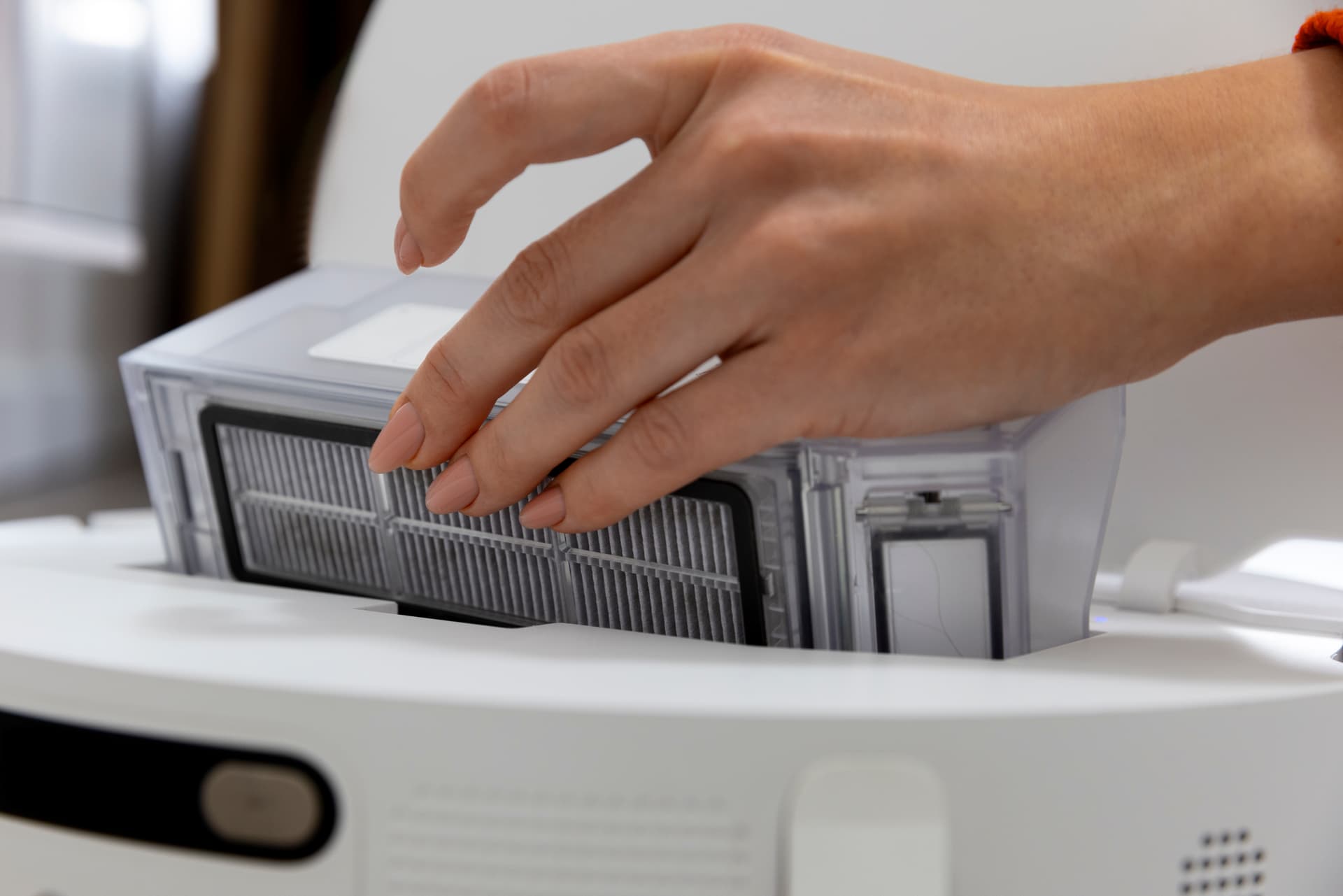
Filters
- Remove the HEPA filter and clear dust. Tap out or blow through (don't wash unless the manual specifically states otherwise).
- Replace the filter if it's been in use for more than 3-6 months.
Sensors
- Wipe cliff sensors on the robot's underside with a soft cloth.
- Wipe the LiDAR sensor (the top "turret") — dust on the LiDAR impairs navigation.
- Clean charging contacts on both the robot and the docking station — oxidised contacts prevent charging.
Wheels
- Check main wheels — they should rotate freely and spring back.
- Remove the front caster wheel and clear the axle of tangled hair and debris.
3. Microwave Oven
- Wipe internal walls with a damp cloth and mild detergent. For stubborn grease: heat a glass of water with lemon for 3 minutes on full power — the steam loosens deposits.
- Check the turntable for cracks or chips.
- Clean turntable rollers — the plate should rotate freely.
- Inspect the door seal — it should be clean and undamaged.
- Clear ventilation openings on side and rear panels.
4. Power Tools
Batteries
- Clean contacts on battery packs — remove dust and oxidation.
- Charge all batteries to 50-70% for storage (don't store at 100% or 0% — this shortens lithium-ion cell lifespan).
- Check charging time — if a battery charges significantly faster than usual, its capacity has dropped.
Housing and Ventilation
- Blow out ventilation openings with compressed air — wood dust, concrete, and metal particles block cooling.
- Inspect the power cable (mains tools) — look for insulation damage, particularly where the cable enters the housing.
5. Audio Equipment
- Blow through with compressed air via ventilation openings — valve and high-power transistor amplifiers are especially sensitive to dust-induced overheating.
- Rotate all knobs (volume, balance, tone) from one extreme to the other several times — this cleans potentiometers and eliminates crackling.
- Check all connections — RCA, optical, HDMI ARC.
6. Cables and Network Equipment
Router
- Reboot your router — unplug for 30 seconds, then reconnect.
- Blow out ventilation openings — routers run 24/7 and collect dust.
- Check for firmware updates — via the router's admin panel (typically 192.168.1.1).
Surge Protectors
- Check the protection indicator. If it's not lit, the varistors have been expended — the filter no longer protects. Replace it.
- Don't overload extension leads — add up the total wattage of connected devices and compare with the maximum rating on the housing.
7. Firmware Updates
Spring is a good time to update firmware across all devices: Smart TV, router, robot vacuum (via app), games console, NAS server. Updates close security vulnerabilities and fix bugs.
When It's Time to Visit a Professional
If during your spring maintenance you discover any of the following, bring the device to SATER:
- TV flickering, banding, or dark spots on the screen
- Robot vacuum not holding charge or navigating poorly after sensor cleaning
- Microwave sparking, making noise, or heating unevenly
- Power tool battery charging in 20 minutes instead of an hour (degradation)
- Any burning smell from electronics
- Swollen or leaking capacitors (visible on inspection)
Repair path
Where to go next if this fault is repairable
Related SATER service, brand and fault pages help you understand the repair route and get the device into the right diagnostic flow.
Frequently Asked Questions
Need professional repair?
SATER service centre — Silmaču iela 6, Riga
SATER service — home electronics & appliance repair in Riga